

Configuring office machines and third-party software to send email through our SMTP server
Find the SMTP settings an office printer, scanner or other device needs to send email through EnGuard.
This guide helps you find the SMTP server settings for an office device or third-party program, such as a printer, scanner or medical software.
You can use our SMTP server, which is included with your email plan, if your device or program supports TLS 1.2 or TLS 1.3 encryption.
Part 1: Find your mail server address
Step 1: Open webmail in your browser
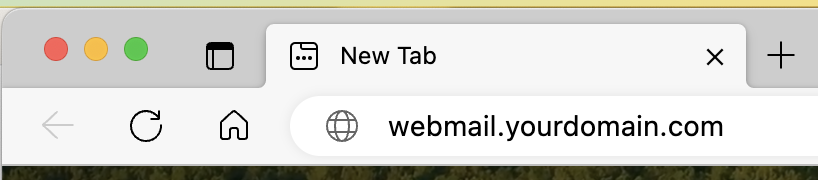
Open a web browser on your computer and type webmail.yourdomain.com in the address bar. Replace yourdomain.com with your own domain name.
For example, if your email address is bob@xyzhealth.com, type webmail.xyzhealth.com.
Type it in the address bar at the top of the browser, not in a search box (Google, Bing, Yahoo and so on). Do not type http:// or https:// in front of it.
Step 2: Find your mail server address
You will be sent to your mail server automatically. Your mail server address is the first part of the web address you land on.
In this example, the mail server address is mail.enguard.com.

Step 3: Write it down
Write down your mail server address. You will need it for the steps below.
Part 2: Enter the settings on your device or program
Find the SMTP settings on your device or program and enter the following.
- Server: your mail server address
- User name: your email address
- Password: your password
Your device must let you choose a port and an encryption type. Use one of these:
- 587 with TLS or STARTTLS
- 465 with SSL
- 25 with TLS. Most internet providers block port 25.
- 25 with No Encryption. Use this only as a last resort. Do not send Patient Health Information over this port. Most internet providers block port 25.
Your device must also sign in (authenticate) with your user name and password.
The sender or from address must match the email address you sign in with. It cannot be any other email address.
If your device does not support these settings
Some devices and programs do not support the security settings above. A device that cannot use them cannot be used to send Patient Health Information (PHI) in a HIPAA compliant, secure way. We encourage you to update your system or use another method to send PHI.
If you have a device or program that does not work with these settings and you still want to send email from your EnGuard address, we offer an SMTP Relay service for $10 per month. With SMTP Relay, the sender address does not have to match the sign-in address, and there are non-secure ports for devices that do not support TLS 1.2 or TLS 1.3.
To request SMTP Relay, contact our support team. We will send you the settings to use on your device or program.