Moving Messages
Move email messages to another folder: drag and drop, right-click, several at once, or select all.
This guide shows you how to move messages to another folder. In this example, we move a message from the Inbox to a custom folder named New Clients.
Option 1: Drag and drop
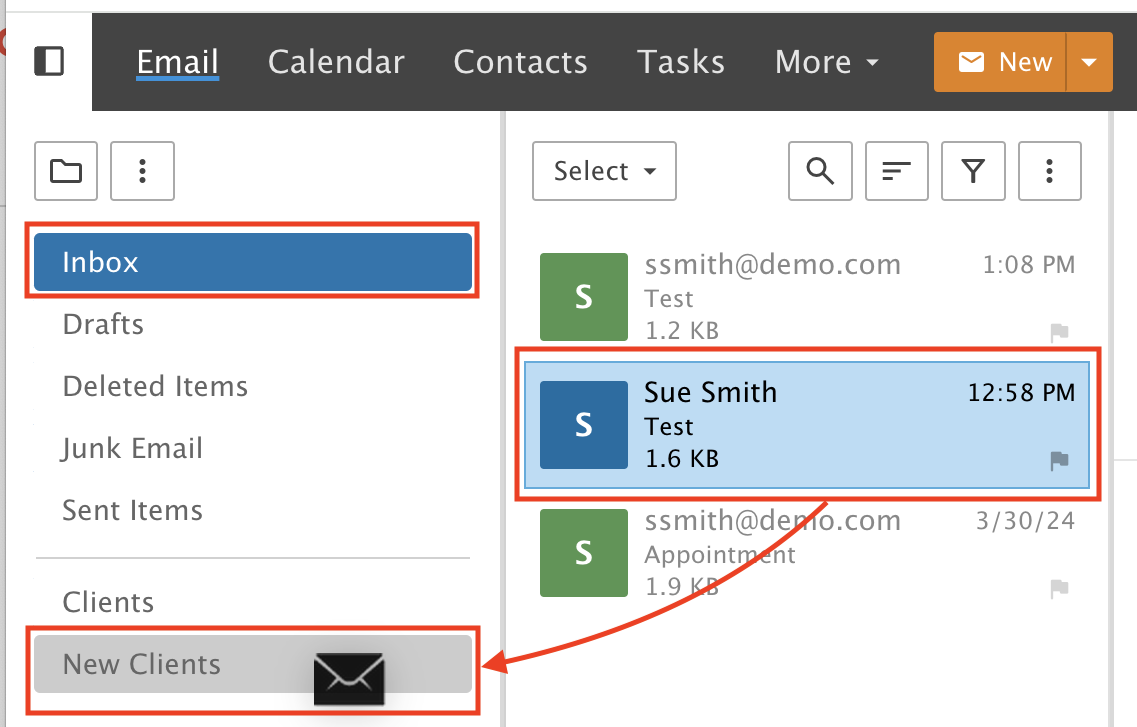
Click the message (it turns blue), hold it and drag it to another folder. An envelope icon appears to guide the message to its new place.
Make sure the folder you want is highlighted in gray, then drop the message into it.
Option 2: Right-click
Step 1: Choose Move
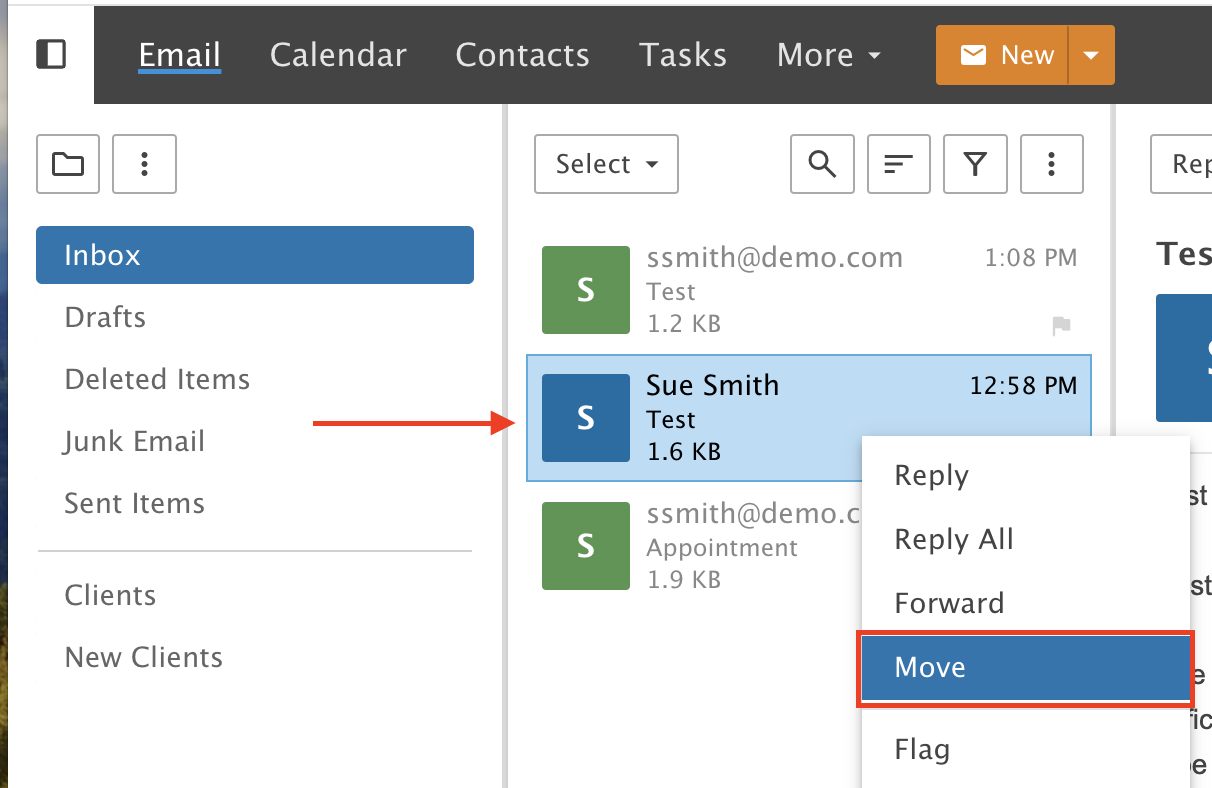
Right-click the message (it turns blue) and select Move.
Step 2: Pick the folder
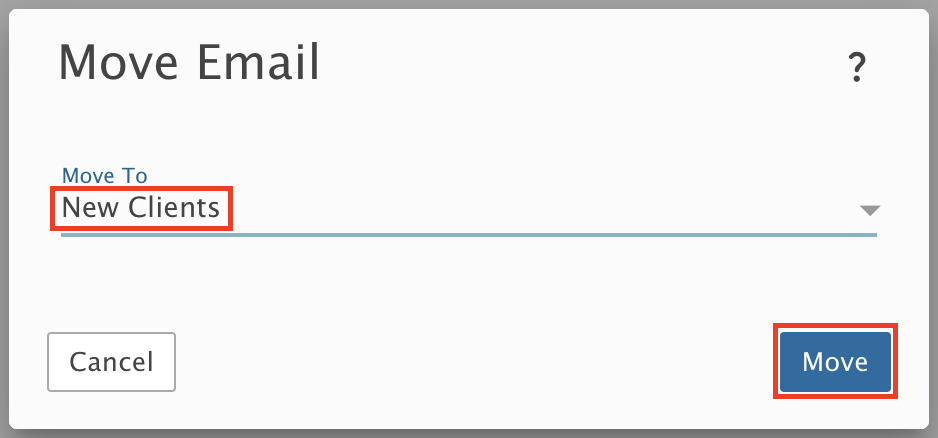
Select the destination folder from the Move To drop-down menu and click Move.
Move several messages at once
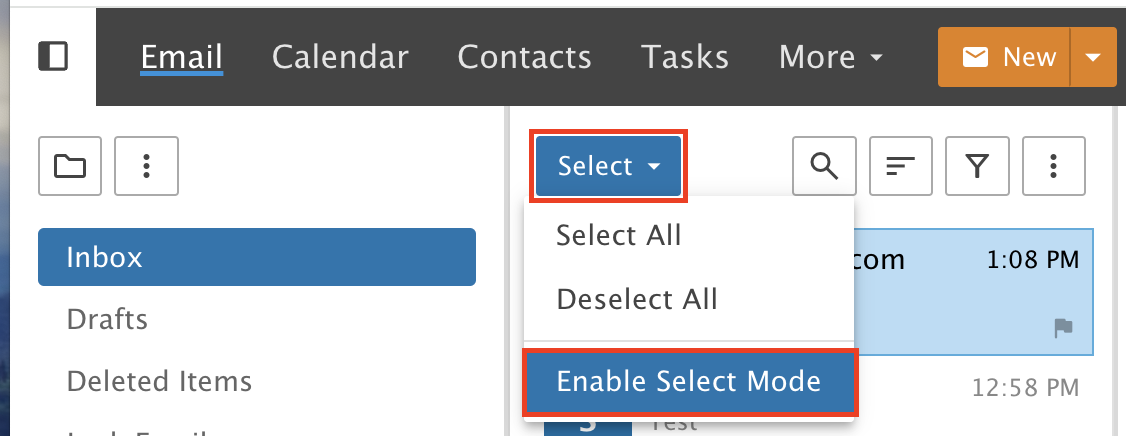
Step 3: Turn on Select Mode
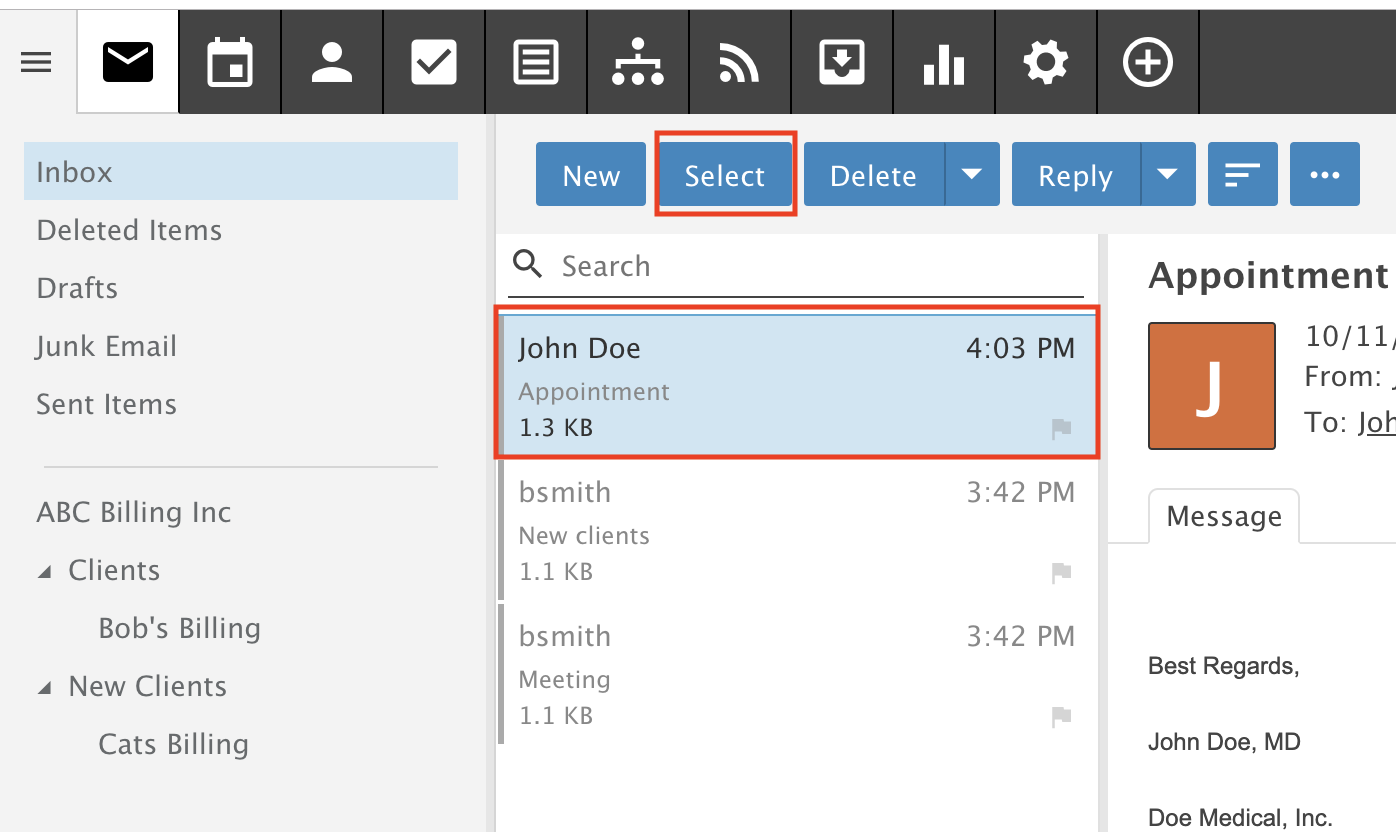
Click the Select drop-down and choose Enable Select Mode.
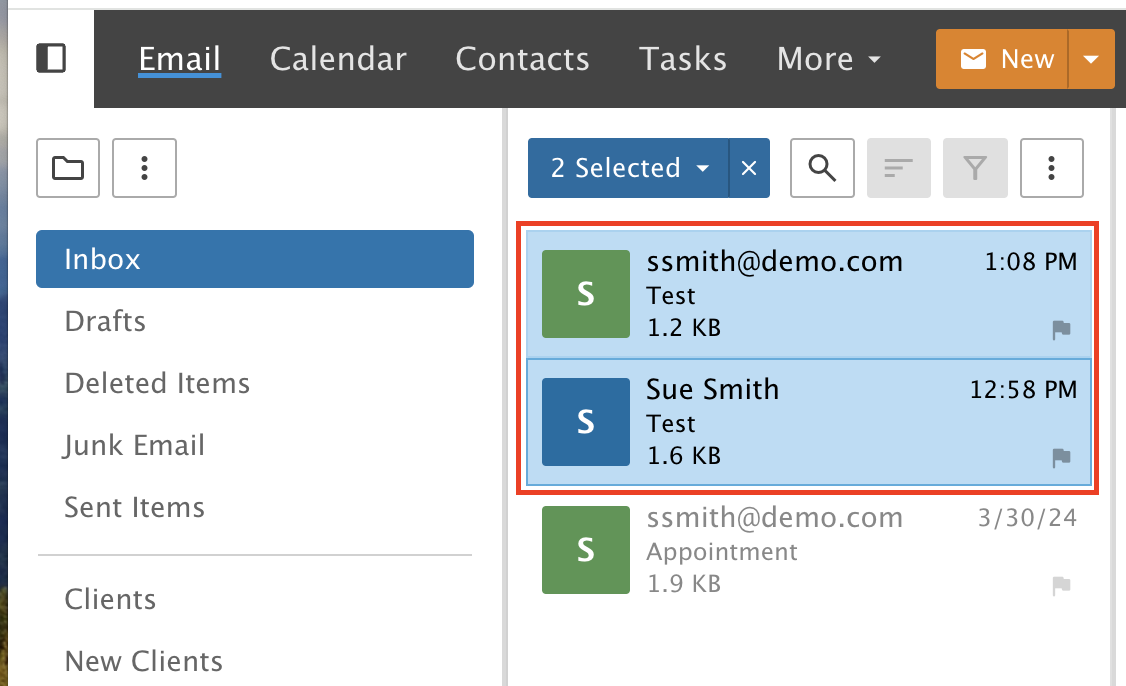
Step 4: Pick your messages
Click each message you want to move together. When they are highlighted in blue, drag and drop them or right-click to move them.
Shortcut: Shift-click or Control-click (Command-click on a Mac) to select multiple messages.
Select all messages
Click the Select drop-down and choose Select All. To undo it, choose Deselect All.
Shortcut: Control-A (Command-A on a Mac) selects all messages.