How to send a password-protected, Encrypted Email
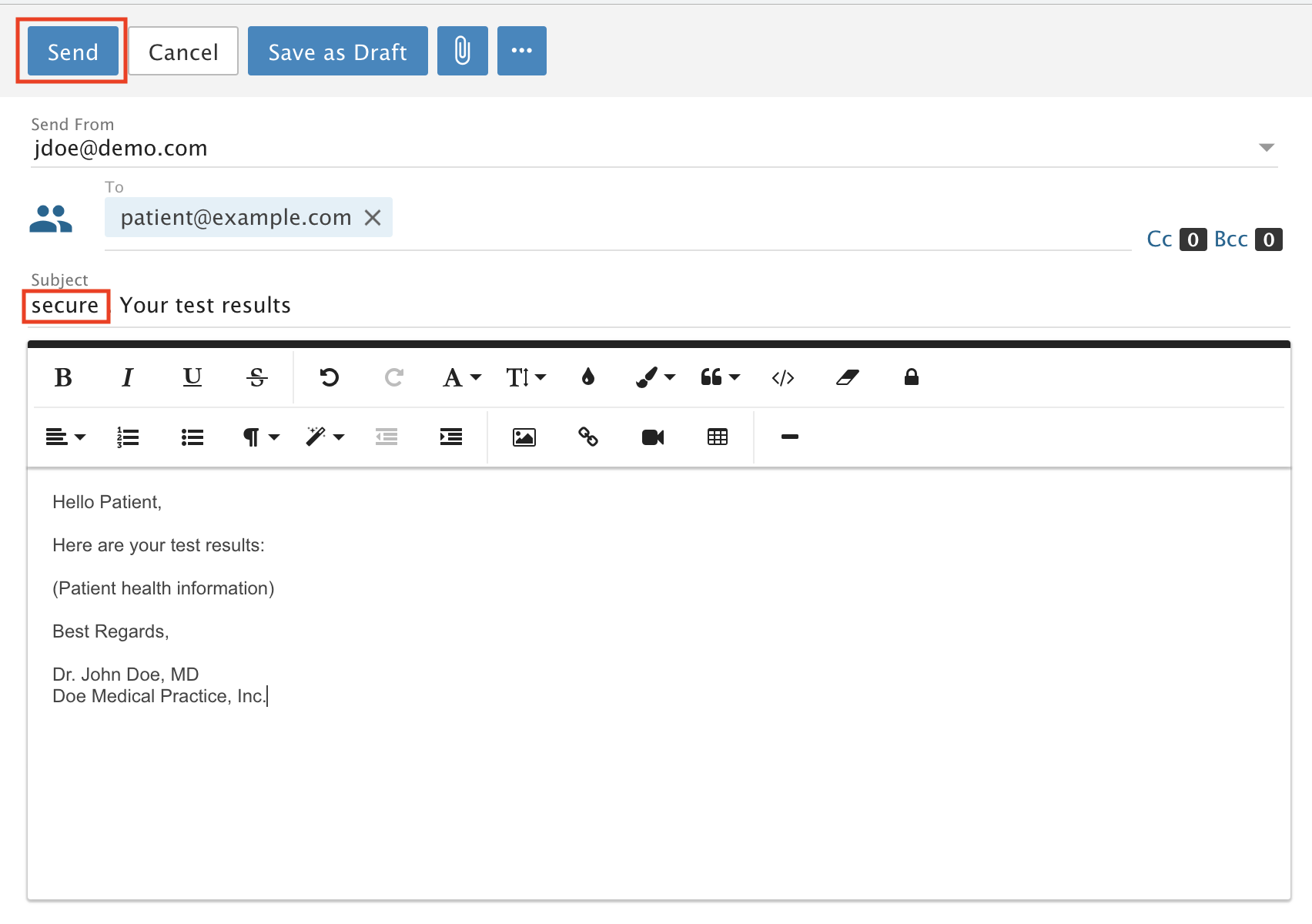
Send a password protected, encrypted email by typing secure in the subject line. Required when sending patient health information to a patient.
Message encryption protects the message body and any attachments (up to 25MB). Your message reaches the recipient through our Secure Messaging System.
To follow HIPAA, you are required to use this feature to send Patient Health Information (PHI) by email to a patient. There are no exceptions.
When you need this
- Emails inside your domain, or to other EnGuard customers: these are encrypted and secure automatically. There are no extra steps. Use your email as normal.
- Emails to other HIPAA compliant email providers: these are encrypted in transit with Transport Layer Security 1.2 (TLS) and 256-bit AES Encryption. TLS only protects the message on its way from point A to point B. It does not protect the message once it is delivered. If you do not want PHI stored as clear text in the recipient's inbox, use this feature for an extra layer of security.
Need to send a large file securely? Use Secure File Link. It sends a file of up to 2,000MB to any recipient by email.
How to send an encrypted email
Step 1: Start a new message
Start a new message in any email program on your computer or mobile device. This example uses webmail.
On the subject line, type secure as the first word (it is not case-sensitive), then your subject.
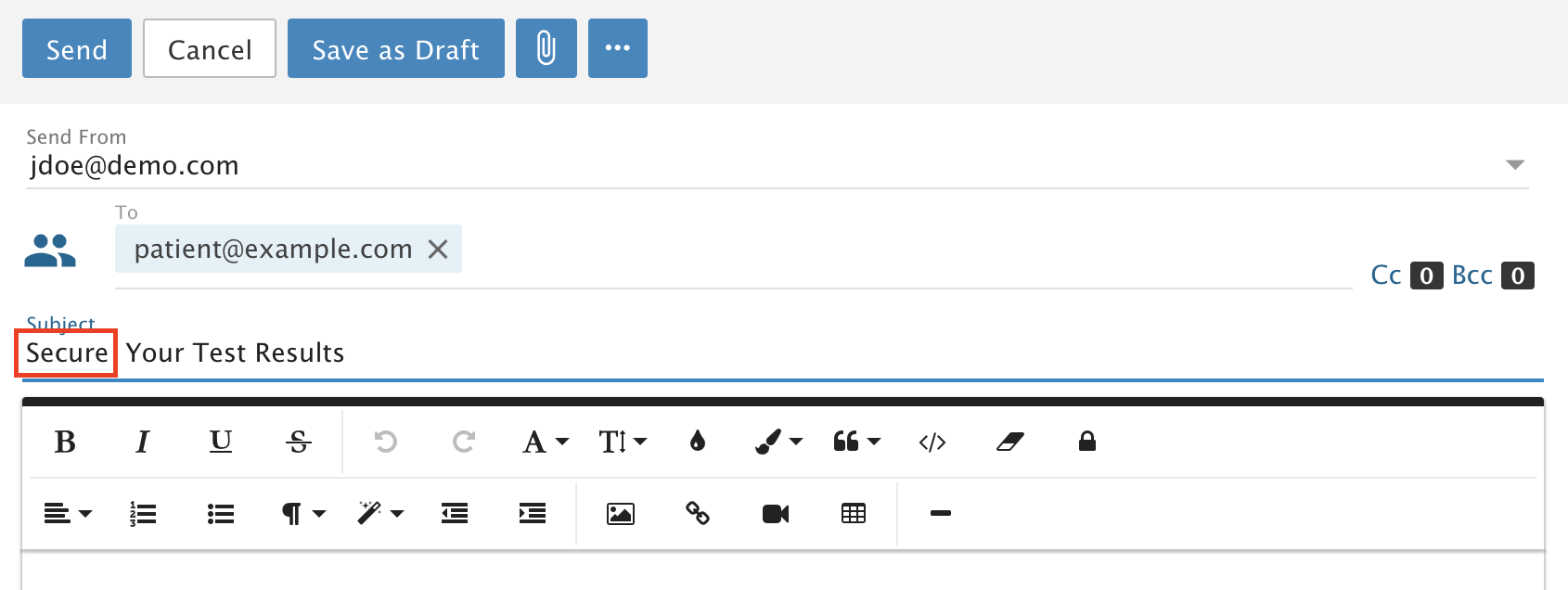
- If the word secure is anywhere in the subject line, the message is sent as a password protected, encrypted message.
- Your recipient will not see the word "secure". They will see anything else you typed in the subject line.
- Subject lines are not encrypted. Do not put sensitive patient information in any subject line.
- Put PHI in the message body, where it is protected. Keep the subject general. For example, instead of "John's Therapy Appointment with Dr. Smith", use "Your Appointment" and put the name, the type of treatment and the doctor in the message body.
Step 2: Write your message and send it
Write your message, add attachments if you need to (optional) and click Send.