

Outlook 2019 / Microsoft 365 - How to Reset Outlook Sync Connection
Reset Outlook Sync in Outlook 2019 or Microsoft 365 when it stops syncing with EnGuard.
Outlook Sync can fall out of sync with EnGuard servers after Windows updates, Office updates or EnGuard system updates.
This guide shows you how to reset your Outlook Sync account in Outlook 2019 or Microsoft 365. The steps below remove the account from Outlook and add it back.
Your email stays safe on our servers. After step 19, Outlook downloads everything again, which can take a few hours.
Part 1: Remove the account from Outlook
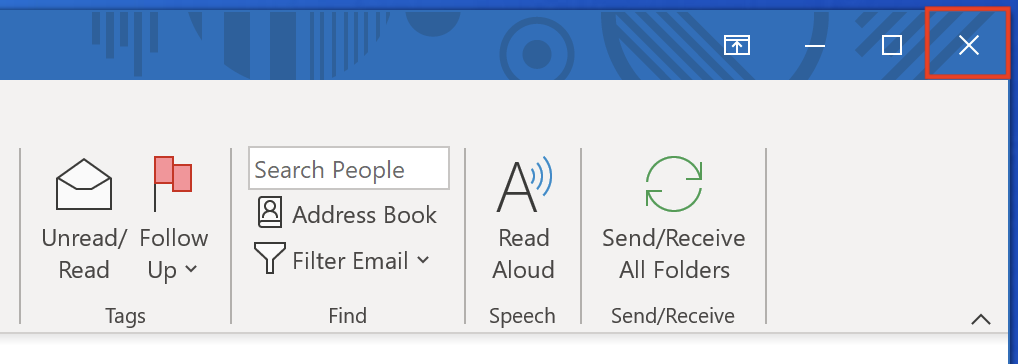
Step 1: Close Outlook
Close Outlook.
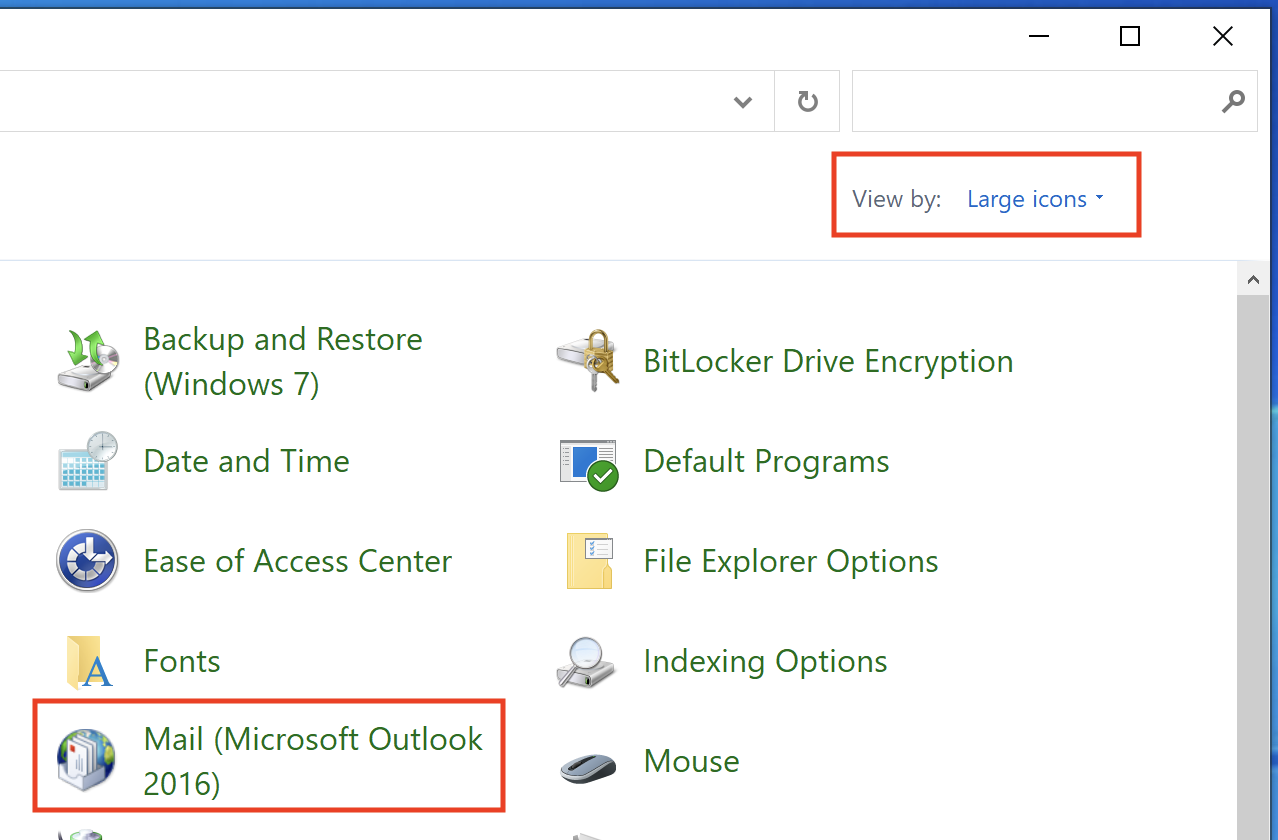
Step 2: Open Mail in the Windows Control Panel
Open the Windows Control Panel. In the drop-down at the top right, select View by: Large icons. Then click Mail.
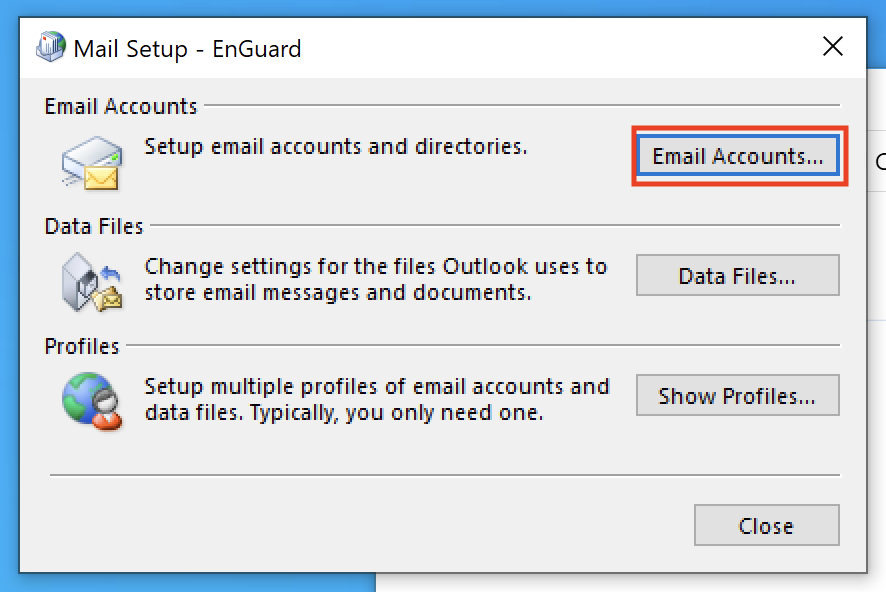
Step 3: Open Email Accounts
Click Email Accounts...
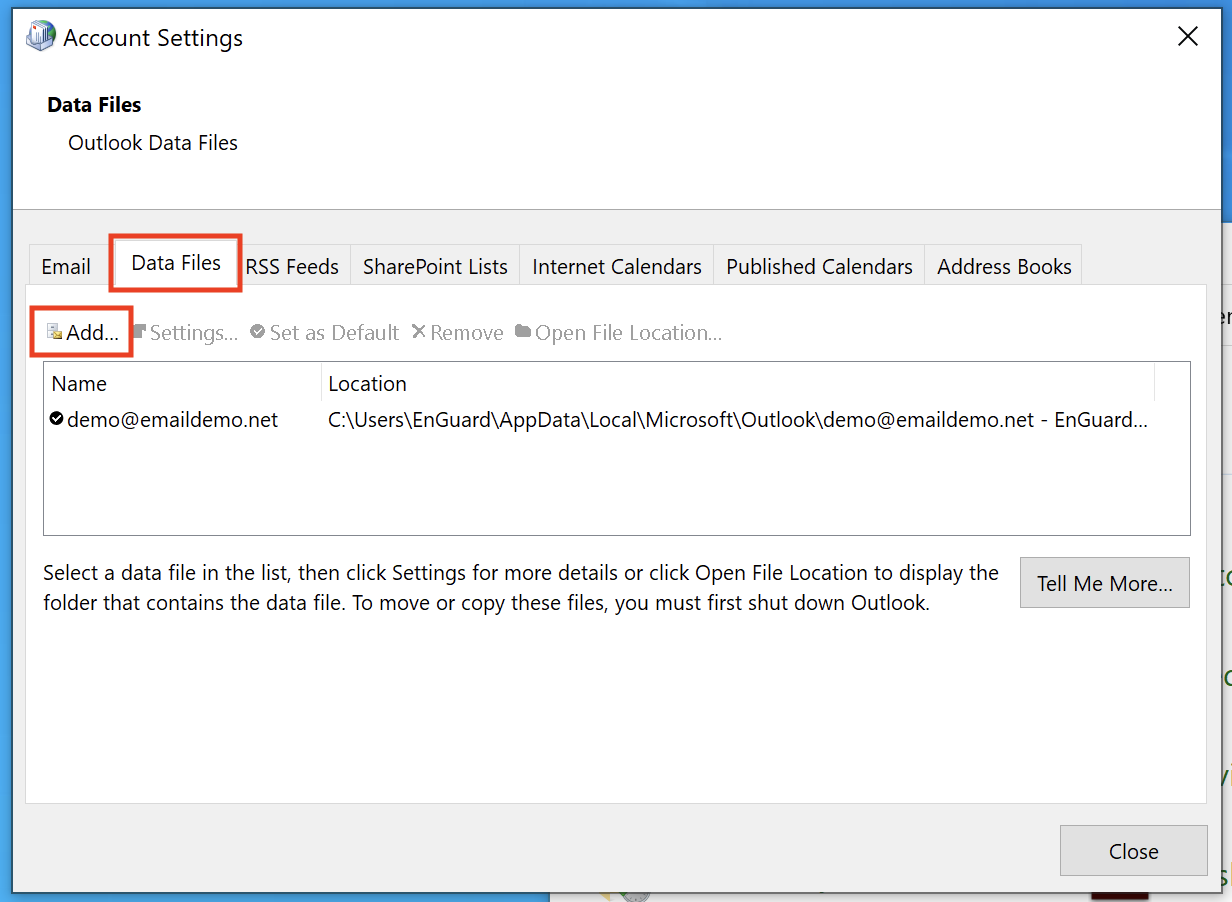
Step 4: Add a data file
Click the Data Files tab, then click Add...
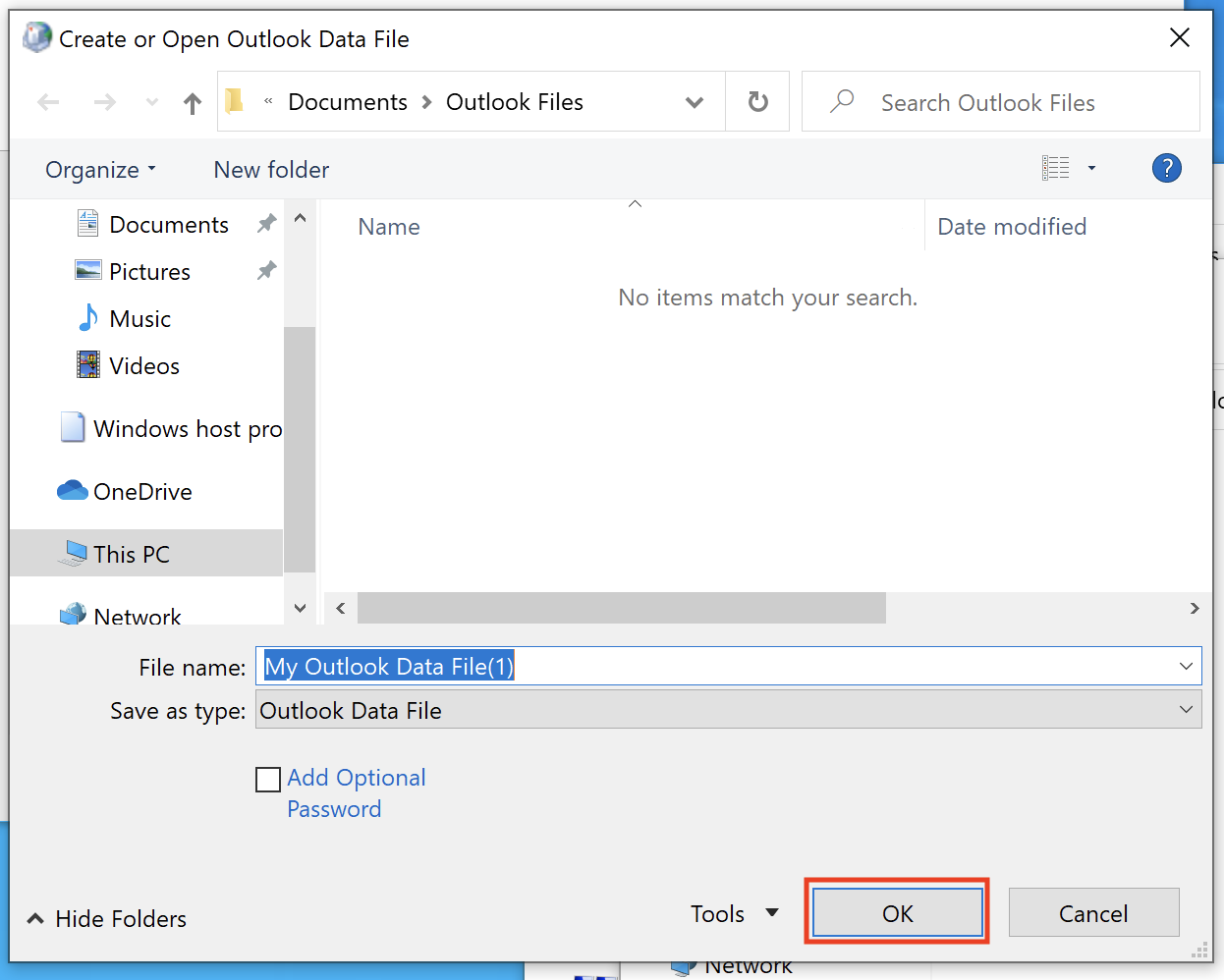
Step 5: Save the file
Select a folder to save the file to and click OK.
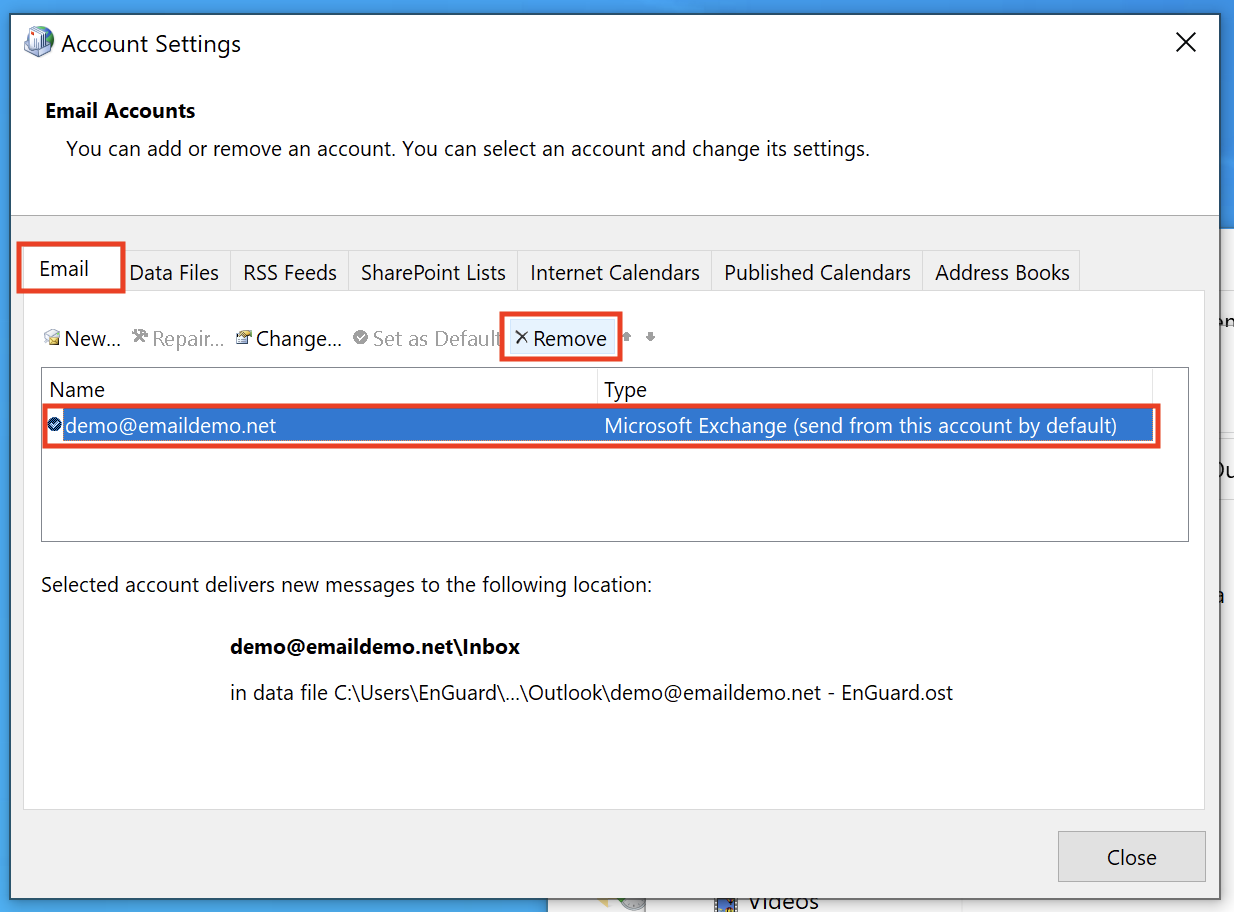
Step 6: Remove the account
Click the Email tab, select your email account and click Remove.
Part 2: Clean up in webmail
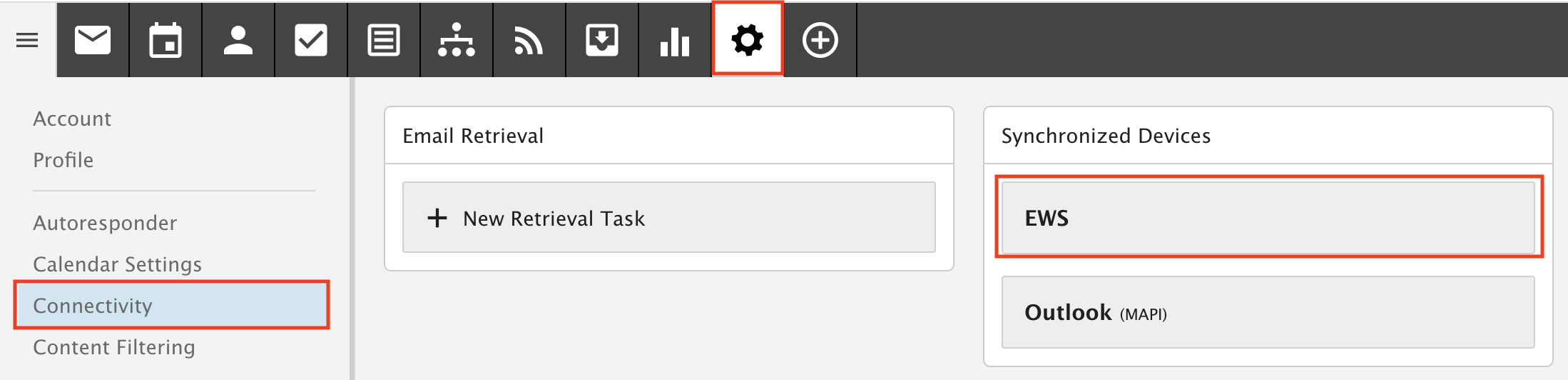
Step 7: Open EWS in webmail
In Webmail, go to Settings, then Connectivity, then open EWS.
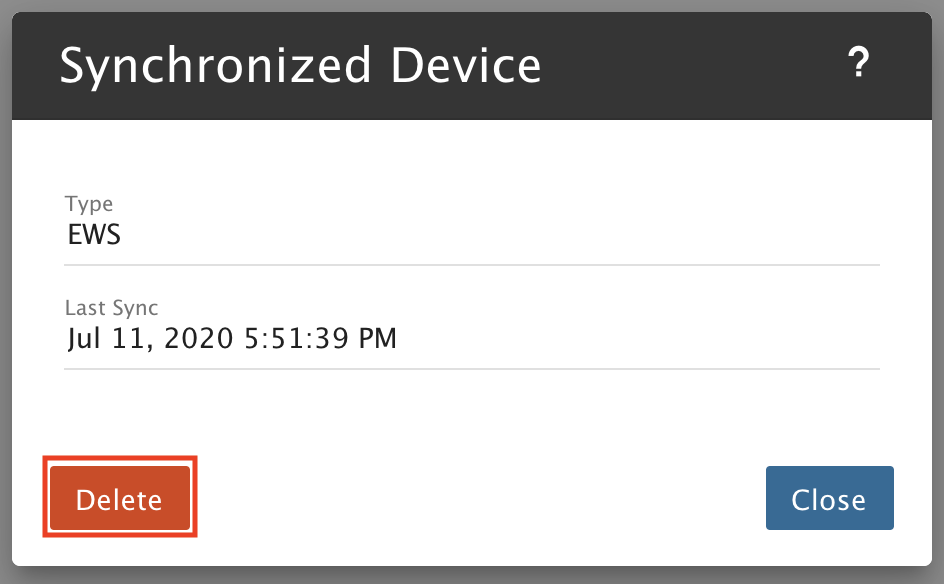
Step 8: Delete the entry
Click Delete.
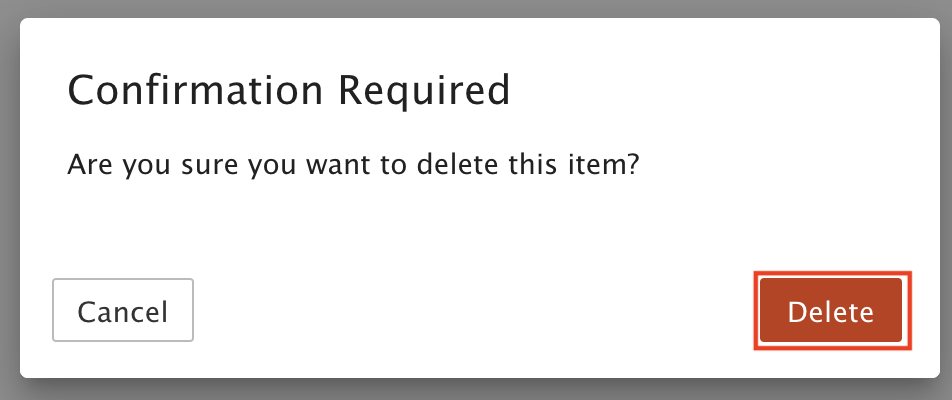
Step 9: Confirm
Click Delete again to confirm.
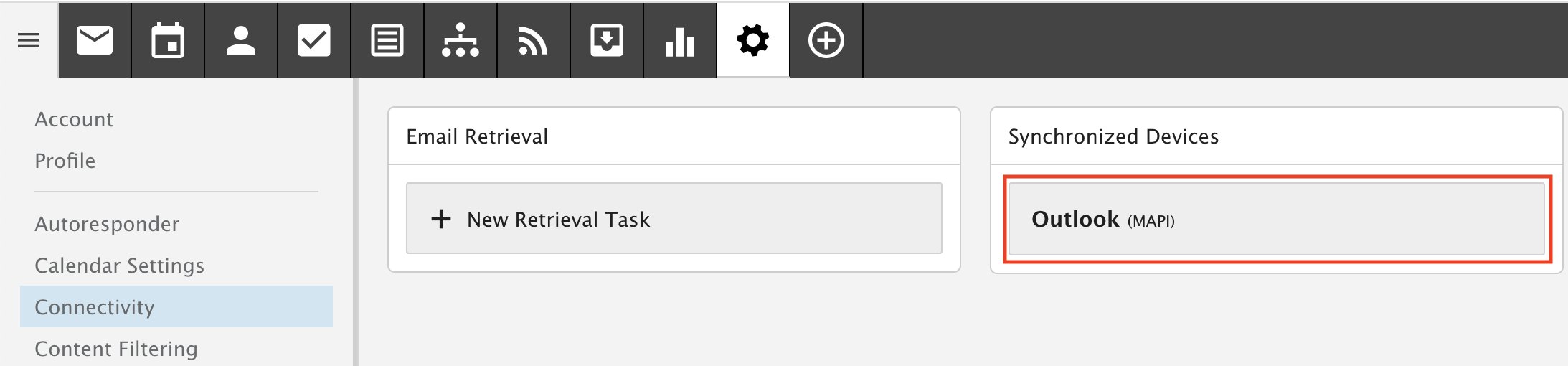
Step 10: Open Outlook (MAPI)
Open Outlook (MAPI).
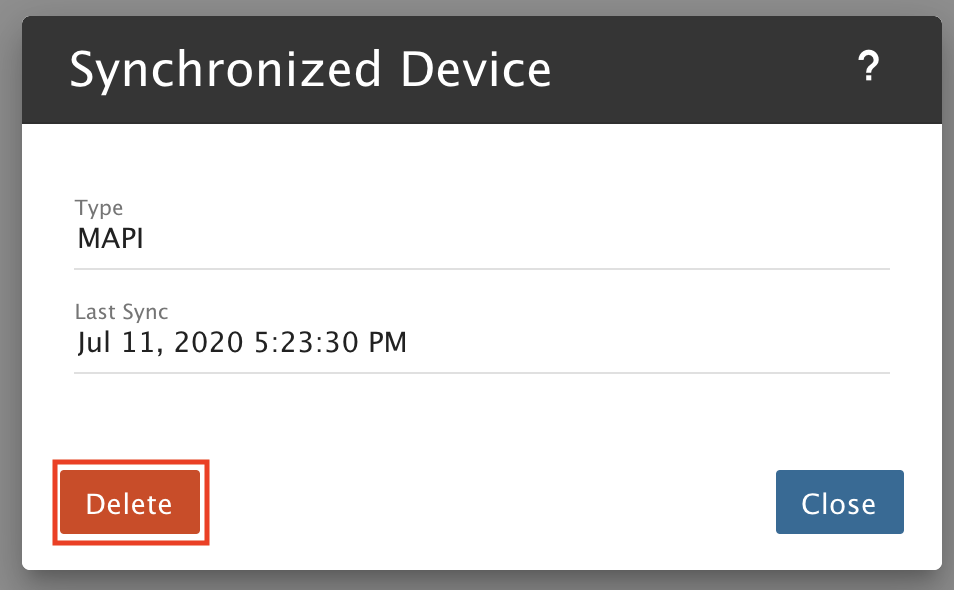
Step 11: Delete the entry
Click Delete.
Step 12: Confirm
Click Delete again to confirm.
Part 3: Add the account again
Step 13: Create a new account
Click New.
Step 14: Enter your details
Fill in the following, then click Next.
A) Your name. Recipients see this on all outgoing messages.
B) Your email address
C) Your password, typed twice
Step 15: Finish
Click Finish.
Step 16: Click OK
Click OK.
Step 17: Close the window
Click Close.
Step 18: Close the next window
Click Close again.
Step 19: Let Outlook sync
Open Outlook and wait for your folders to update. Leave it open until it only says All folders are up to date. This can take a few hours, depending on how much email you have.
When syncing finishes, restart Outlook.