

Replace Exchange ActiveSync in Outlook 2013
Exchange ActiveSync no longer works in Outlook 2013, and Outlook Sync needs a newer Outlook. Use IMAP and remove the old account.
EnGuard used to offer Exchange ActiveSync for Outlook 2013, to sync email, calendar, contacts and tasks with our Webmail and your mobile device for Plan Three customers.
Microsoft has removed Exchange ActiveSync support from all versions of Outlook: https://support.microsoft.com/en-us/help/2859522/outlook-does-not-support-connections-to-exchange-by-using-activesync
If you were connected with Exchange ActiveSync in Outlook 2013, it has stopped working. We replaced it with our new Outlook Sync feature, but it only works with Outlook 2019 or Microsoft 365 and Outlook 2016. To use Outlook Sync, you will need to upgrade your Office 2013 to the latest version.
Until then, you can keep using Outlook 2013 with IMAP email, or switch to our Webmail. Your calendar, contacts and tasks stay safe in webmail. They can sync to a newer Outlook with Outlook Sync whenever you decide to upgrade.
This guide shows you how to add an IMAP email account and remove the Exchange ActiveSync account from Outlook.
Step 1: Add an IMAP account
Follow this guide to add an IMAP email account to Outlook: https://support.enguard.com/396912-Outlook-2013---IMAP-Setup
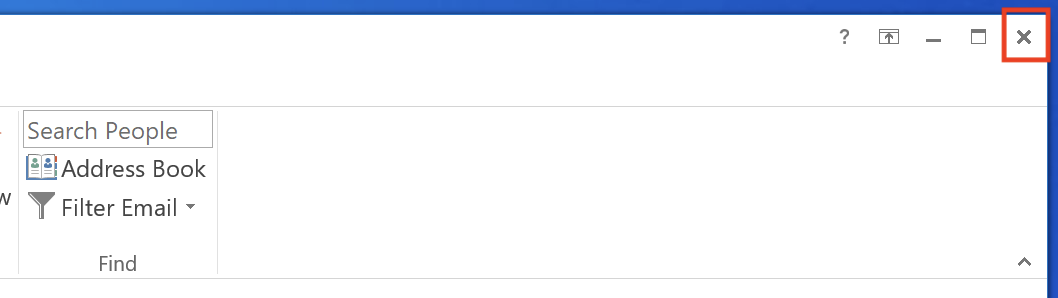
Step 2: Close Outlook
Close Outlook.
Step 3: Open Mail in the Windows Control Panel
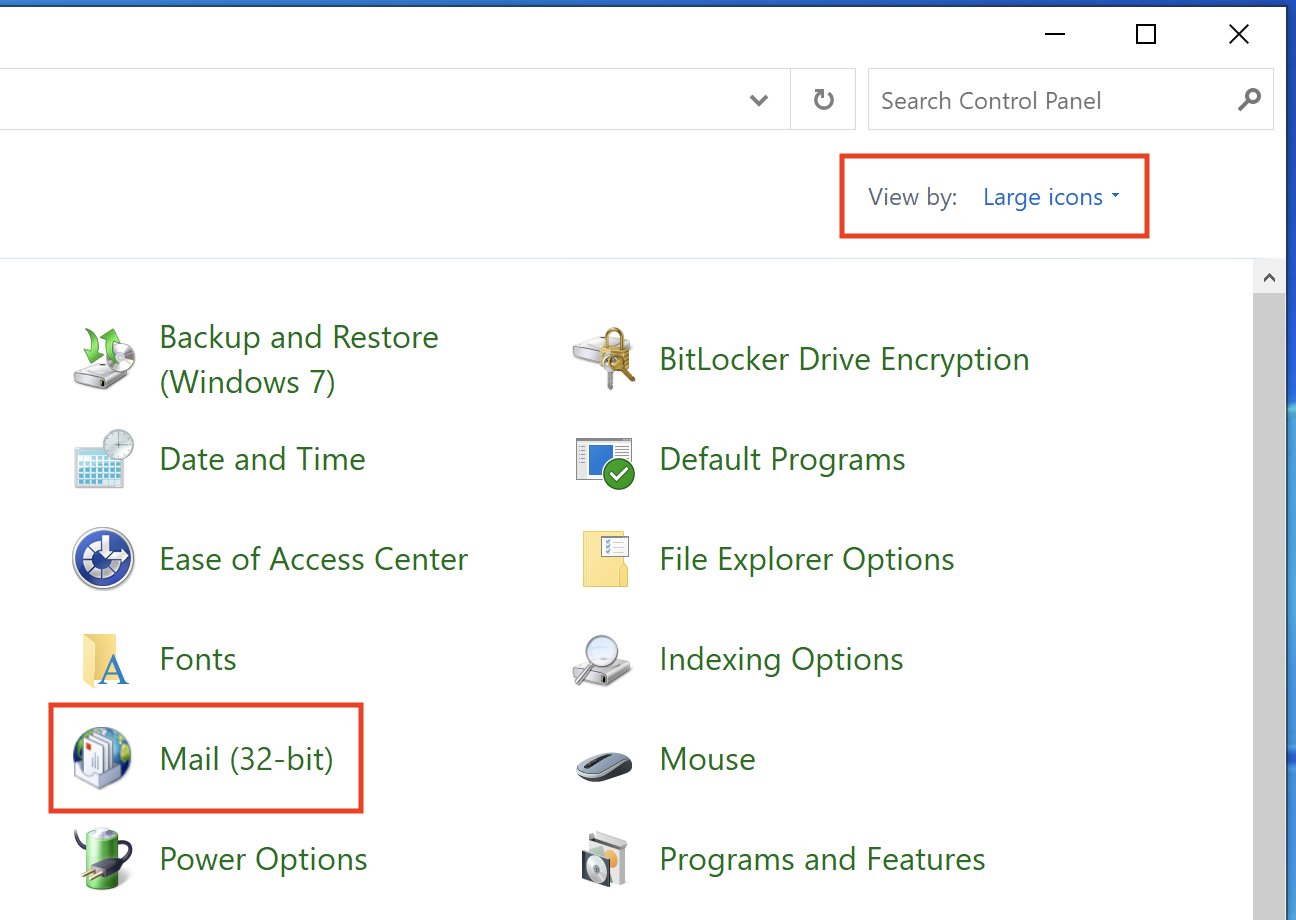
Open the Windows Control Panel. In the drop-down at the top right, select View by: Large icons. Then click Mail.
Step 4: Open E-mail Accounts
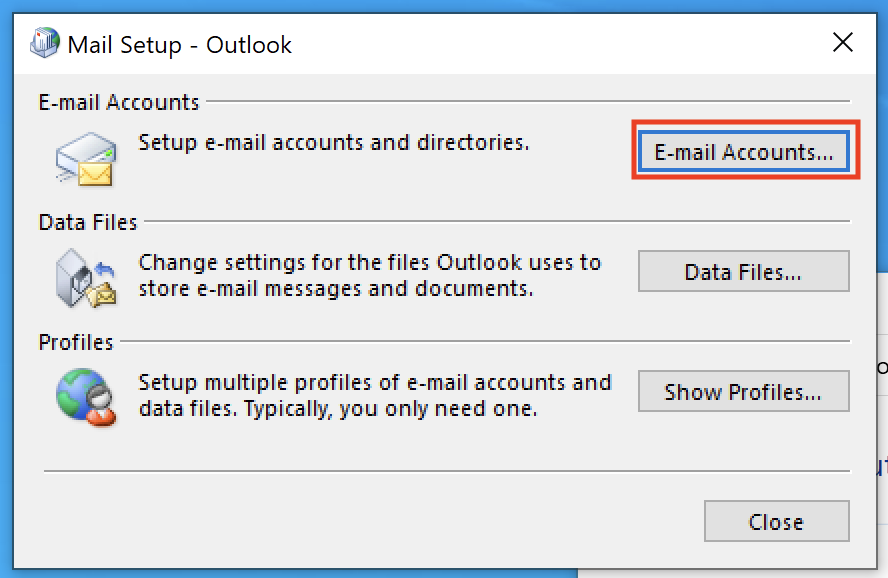
Click E-mail Accounts...
Step 5: Set the new account as default
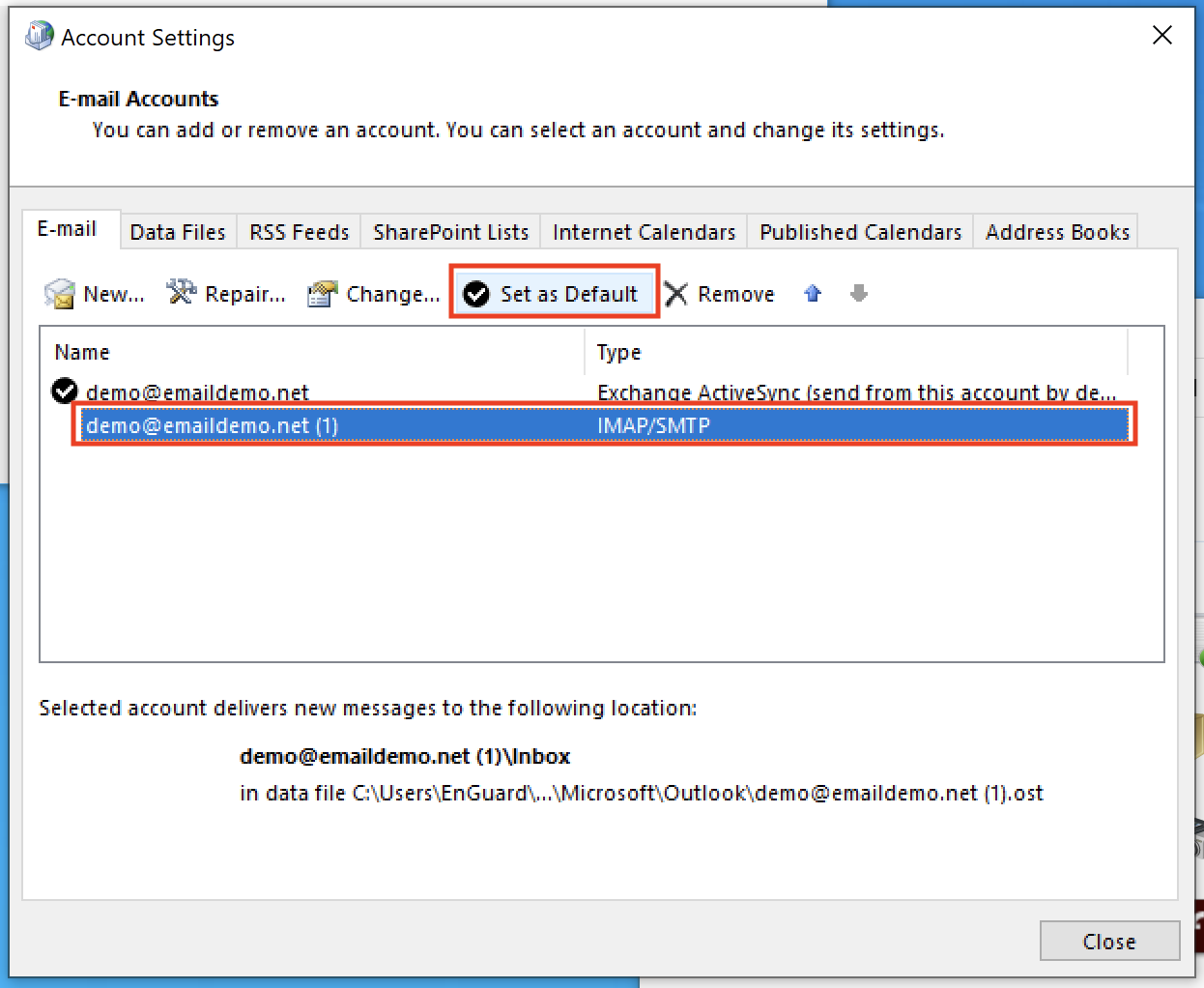
Select the IMAP/SMTP account and click Set as Default.
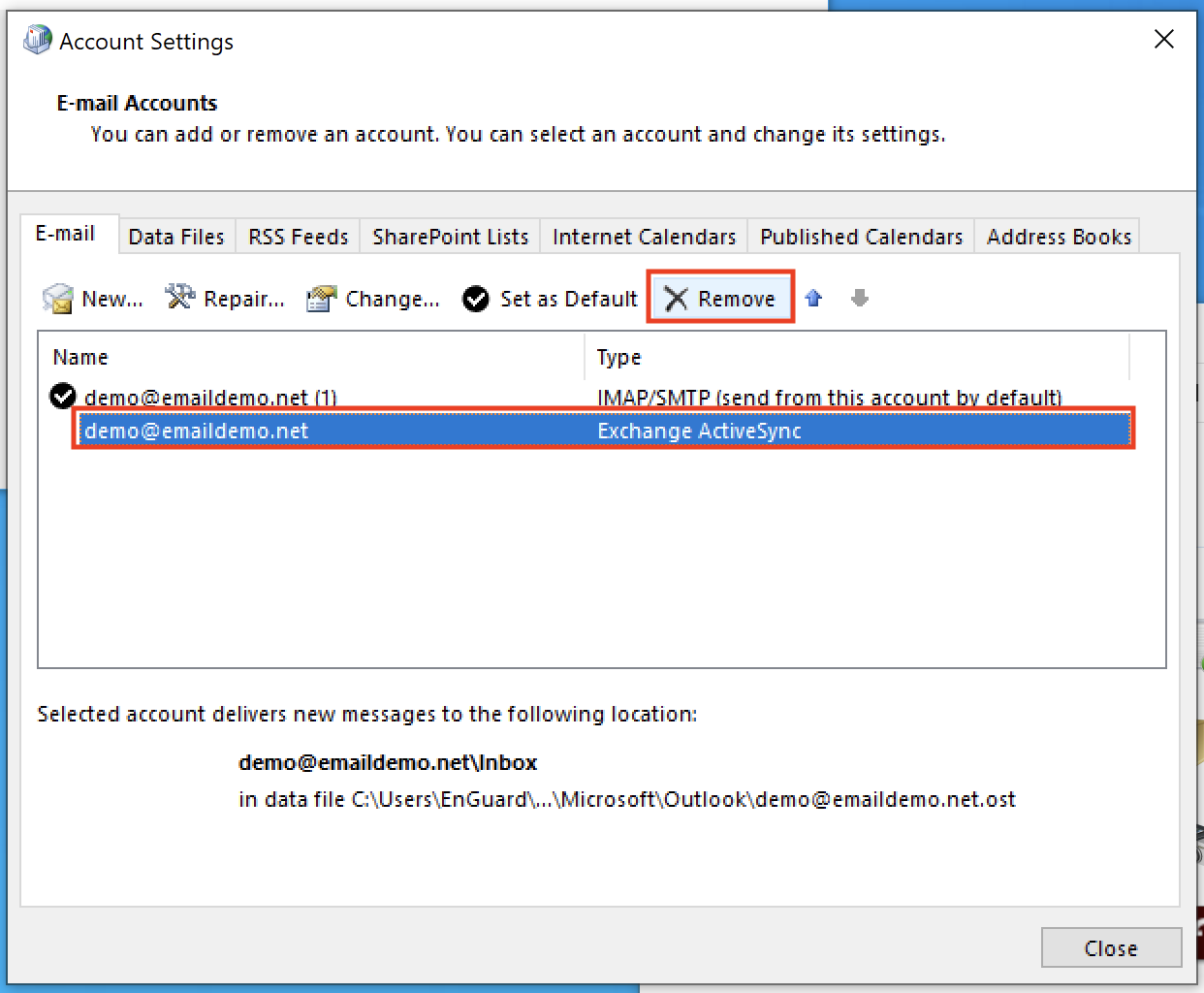
Step 6: Remove the old account
Select the Exchange ActiveSync account and click Remove.
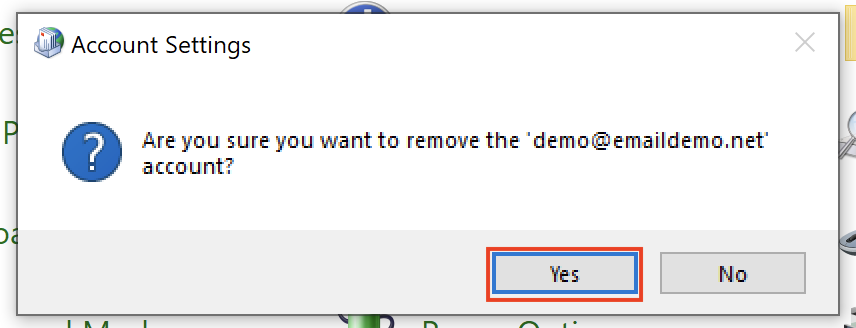
Step 7: Confirm
Click Yes.
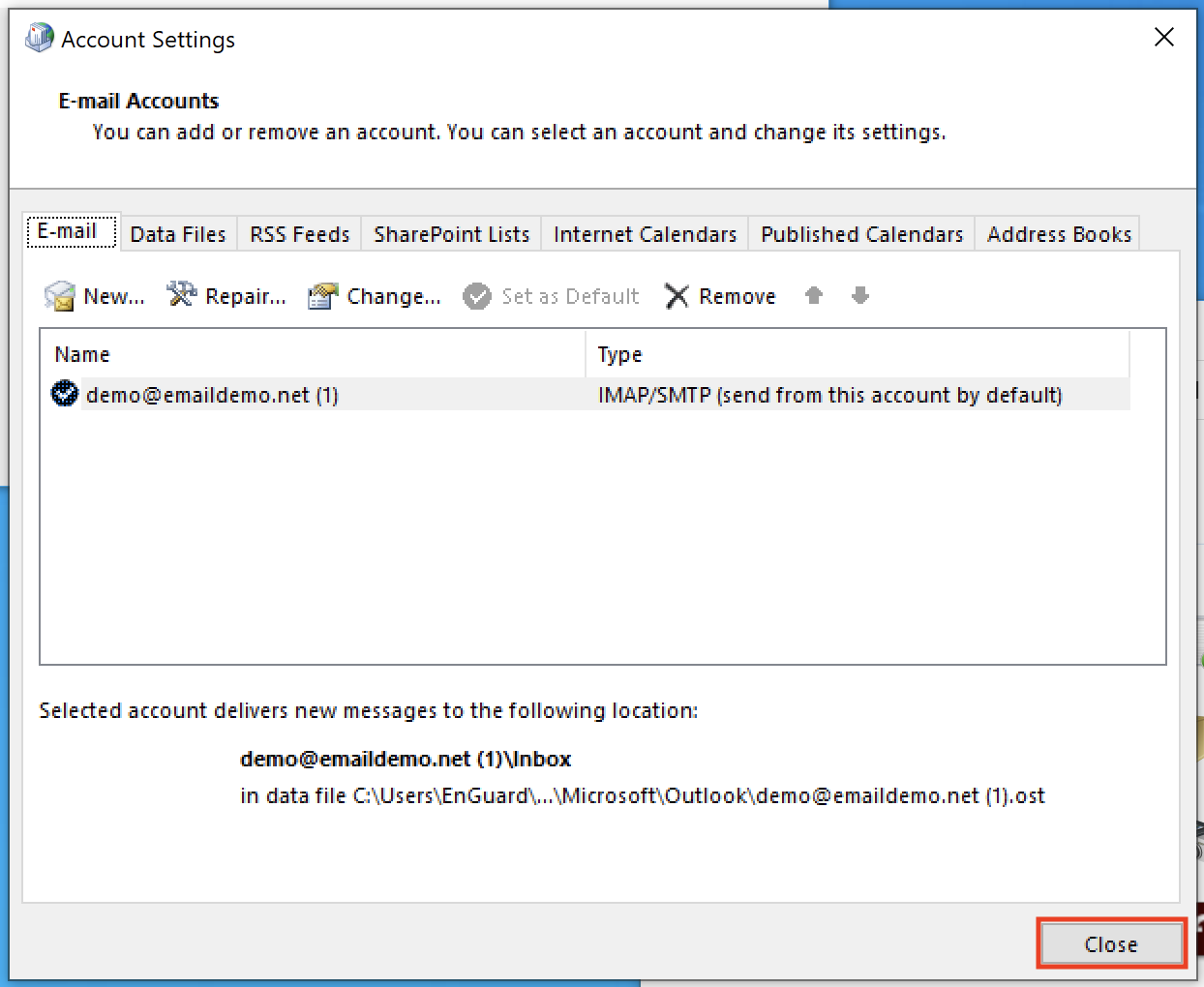
Step 8: Close
Click Close.
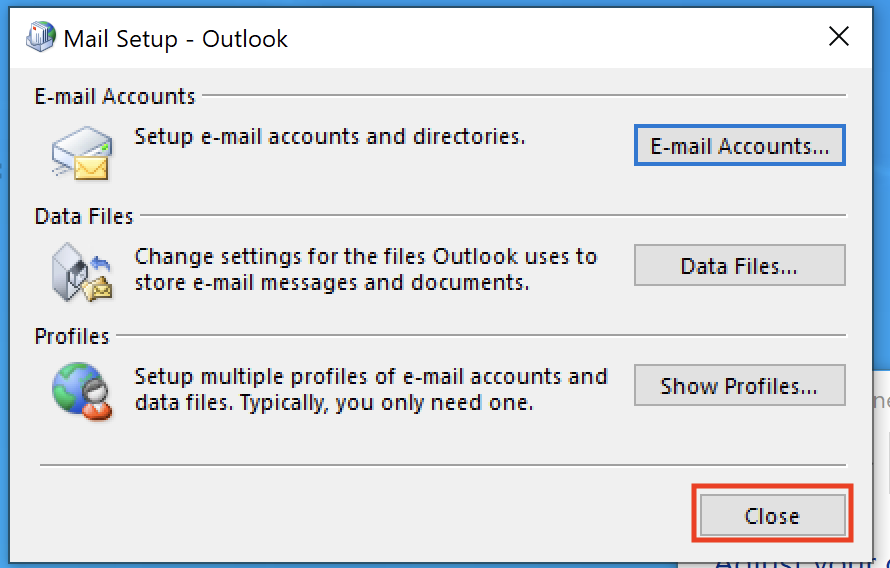
Step 9: Close again
Click Close again.
Step 10: Delete the old device in webmail
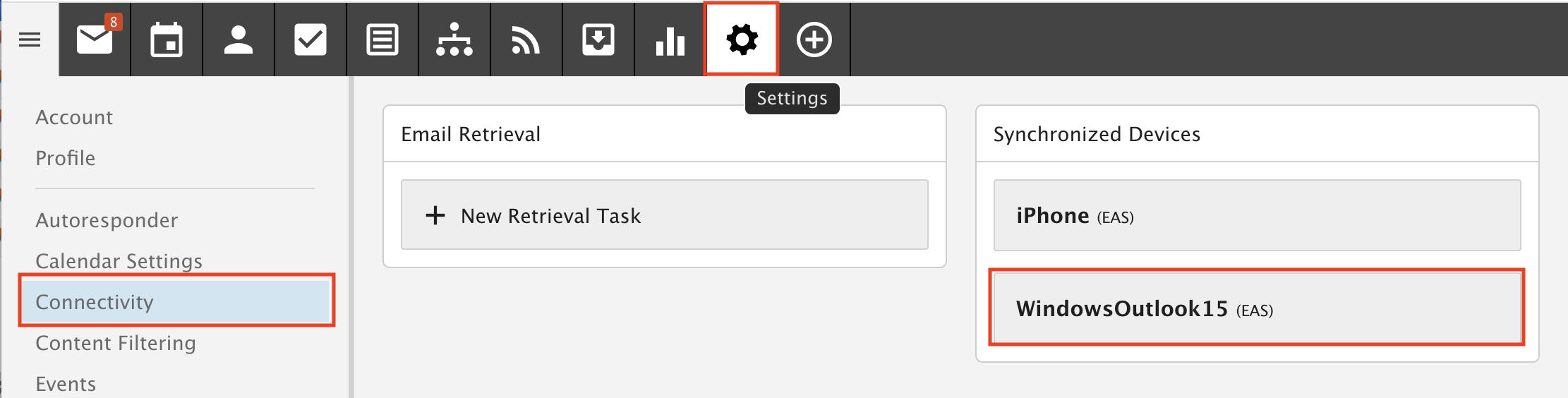
Log in to Webmail and go to Settings. Select Connectivity in the left menu. Under Synchronized Devices, click WindowsOutlook15 (EAS).
Step 11: Delete
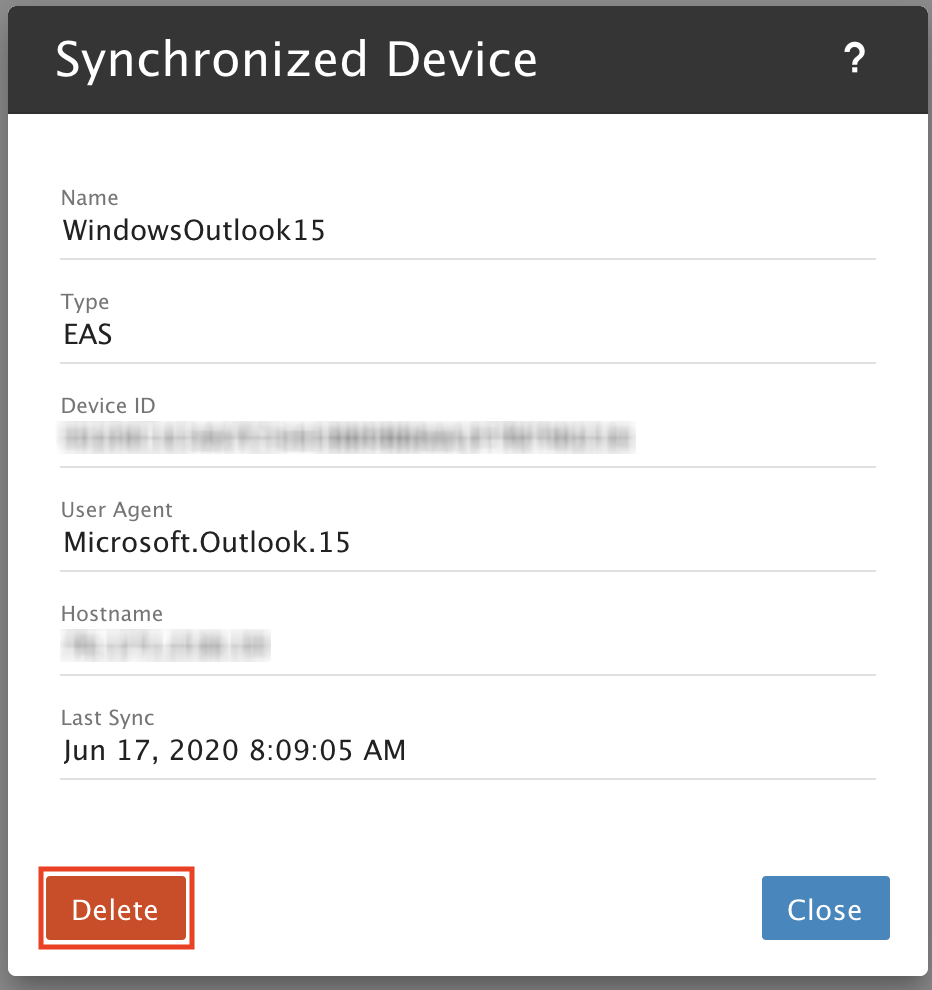
Click Delete.
If you upgrade later
If you upgrade to Office 2019 or Microsoft 365: https://support.enguard.com/905526-Outlook-2019--Microsoft-365---Outlook-Sync-Setup
If you upgrade to Office 2016: https://support.enguard.com/Outlook-Sync-Setup-on-Outlook-2016