

Outlook 2016 - Outlook Sync Stopped Functioning
Fix Outlook Sync in Outlook 2016 by removing the old sync entries and creating a new profile.
Sometimes the PST and OST files get corrupt, and Outlook Sync stops working. This guide shows you how to reset Outlook 2016.
Before you start
Outlook stores data in .PST and .OST files with a maximum size of 50GB. Make sure your computer has enough disk space, at least 50GB.
Performance drops at 12GB or about 12,000 messages in a single folder. Keep your Inbox clean by creating folders and moving messages you do not need into them. Outlook runs best with an Inbox of 4GB or less and fewer than about 1,000 messages.
Part 1: Remove the Outlook Sync entries in webmail
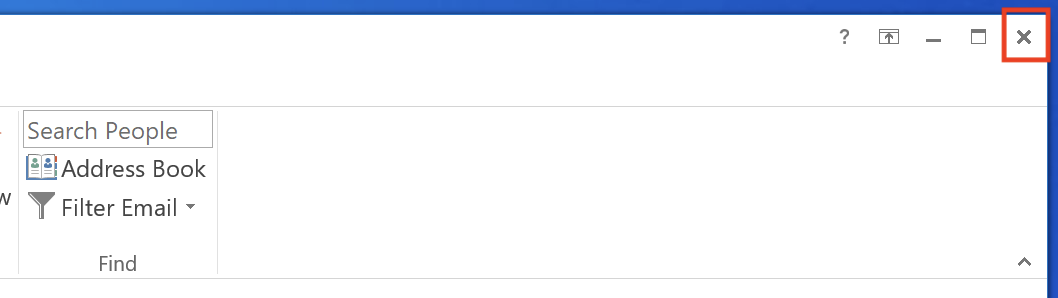
Step 1: Close Outlook
Close Outlook.
Step 2: Open EWS in webmail
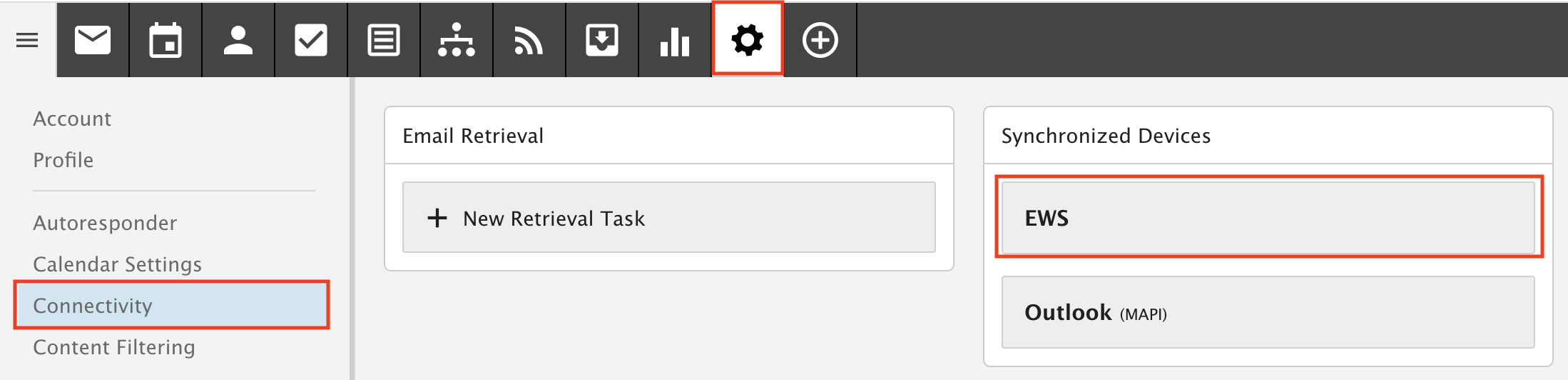
In Webmail, go to Settings, then Connectivity, then open EWS.
Step 3: Delete the entry
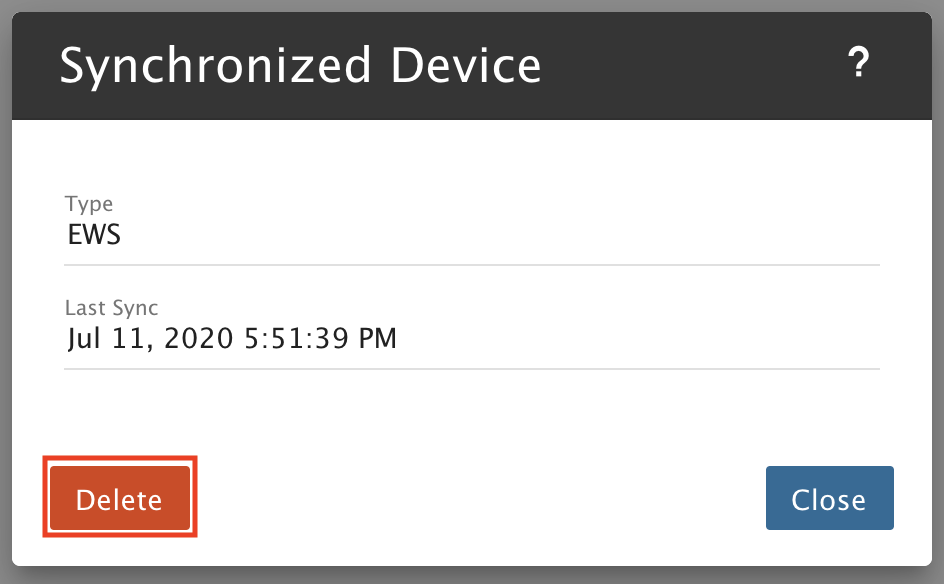
Click Delete.
Step 4: Confirm
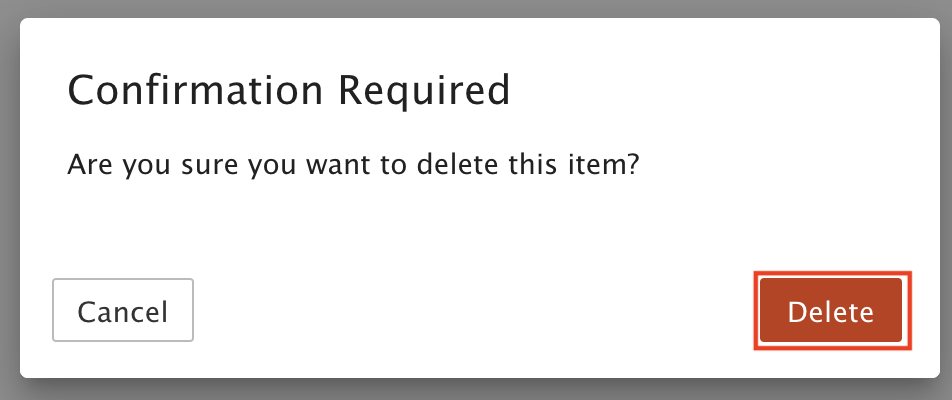
Click Delete again to confirm.
Step 5: Open Outlook (MAPI)
Open Outlook (MAPI).
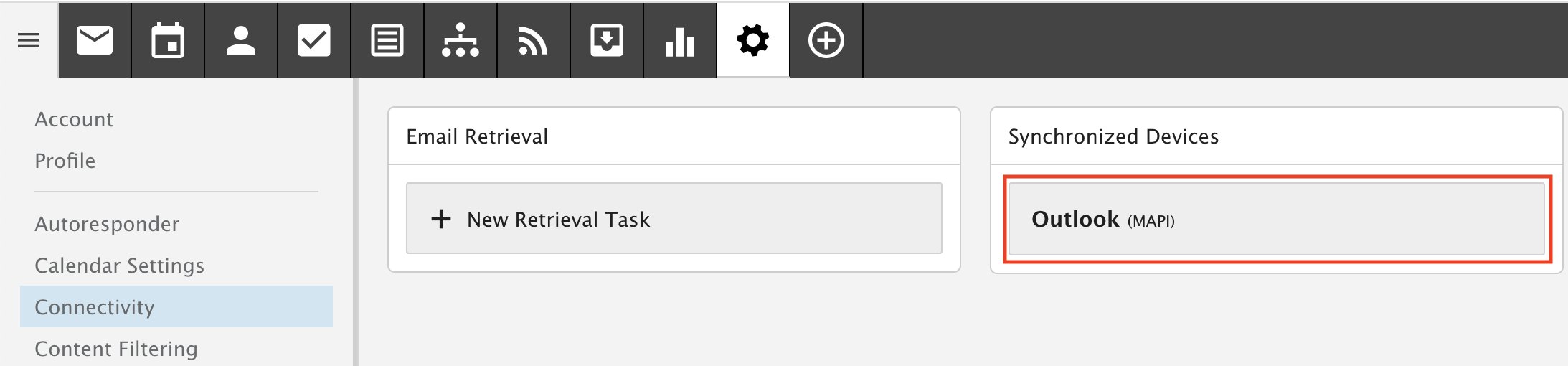
Step 6: Delete the entry
Click Delete.
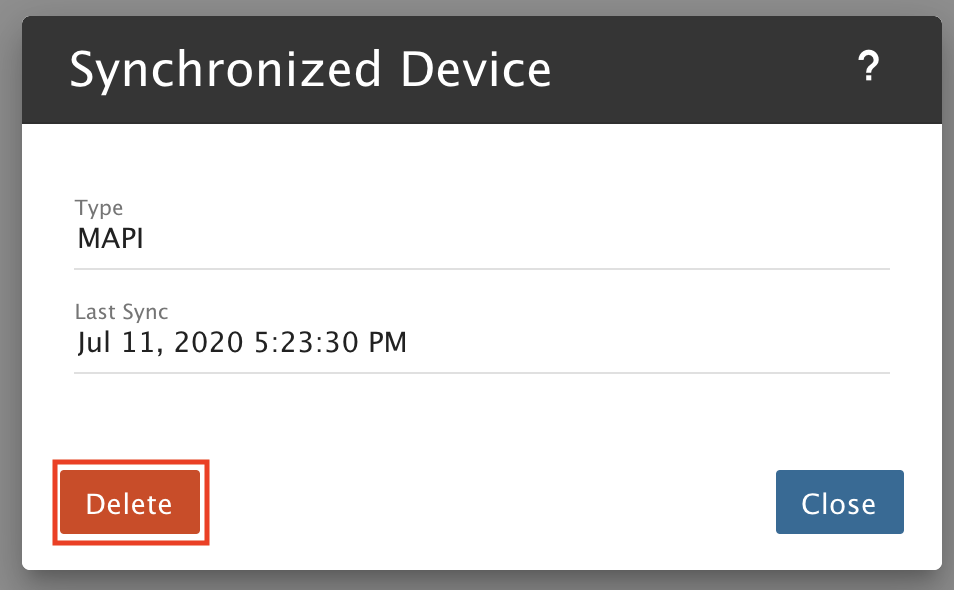
Step 7: Confirm
Click Delete again to confirm.
Part 2: Remove your Outlook profile
Step 8: Open Mail in the Windows Control Panel
Open the Windows Control Panel. In the drop-down at the top right, select View by: Large icons. Then click Mail.
Step 9: Show profiles
Click Show Profiles...
Step 10: Remove the profile
Click Remove.
Step 11: Confirm
Click Yes.
Part 3: Create a new profile
Step 12: Add a profile
Click Add.
Step 13: Name the profile
Name the profile EnGuard and click OK.
Step 14: Enter your details
Fill in the following, then click Next.
A) Your name. Recipients see this on all outgoing messages.
B) Your email address
C) Your password, typed twice
Step 15: Finish
Click Finish.
Step 16: Click OK
Click OK.
Step 17: Let Outlook sync
Open Outlook and wait for your folders to update. Leave it open until it only says All folders are up to date. This can take a few hours, depending on how much email you have.