

Outlook Sync Setup on Outlook 2016
Set up Outlook Sync (email, calendar, contacts and tasks) in Outlook 2016. Enterprise Plan only.
Outlook Sync is only available on our Enterprise Plan. It keeps your email, calendar, contacts and tasks in sync with our Webmail. It also gives you access to Shared Calendars from webmail.
Together with our Mobile Sync feature, your mobile device, webmail and Outlook all stay in sync. For example, add a calendar appointment on your phone and it shows up in webmail and Outlook. Add one in Outlook and it shows up in webmail and on your phone.
This guide shows you how to set up your EnGuard Outlook Sync account in Outlook 2016.
The screenshots are for reference only. Please read the instructions at each step.
Step 1: Run the setup file (first time only)
If this is the first time you are setting up Outlook with our service, do this first: Click here.
Step 2: Start adding your account
If this is the first email account in Outlook, you will see this prompt. Enter your email address and click Connect.
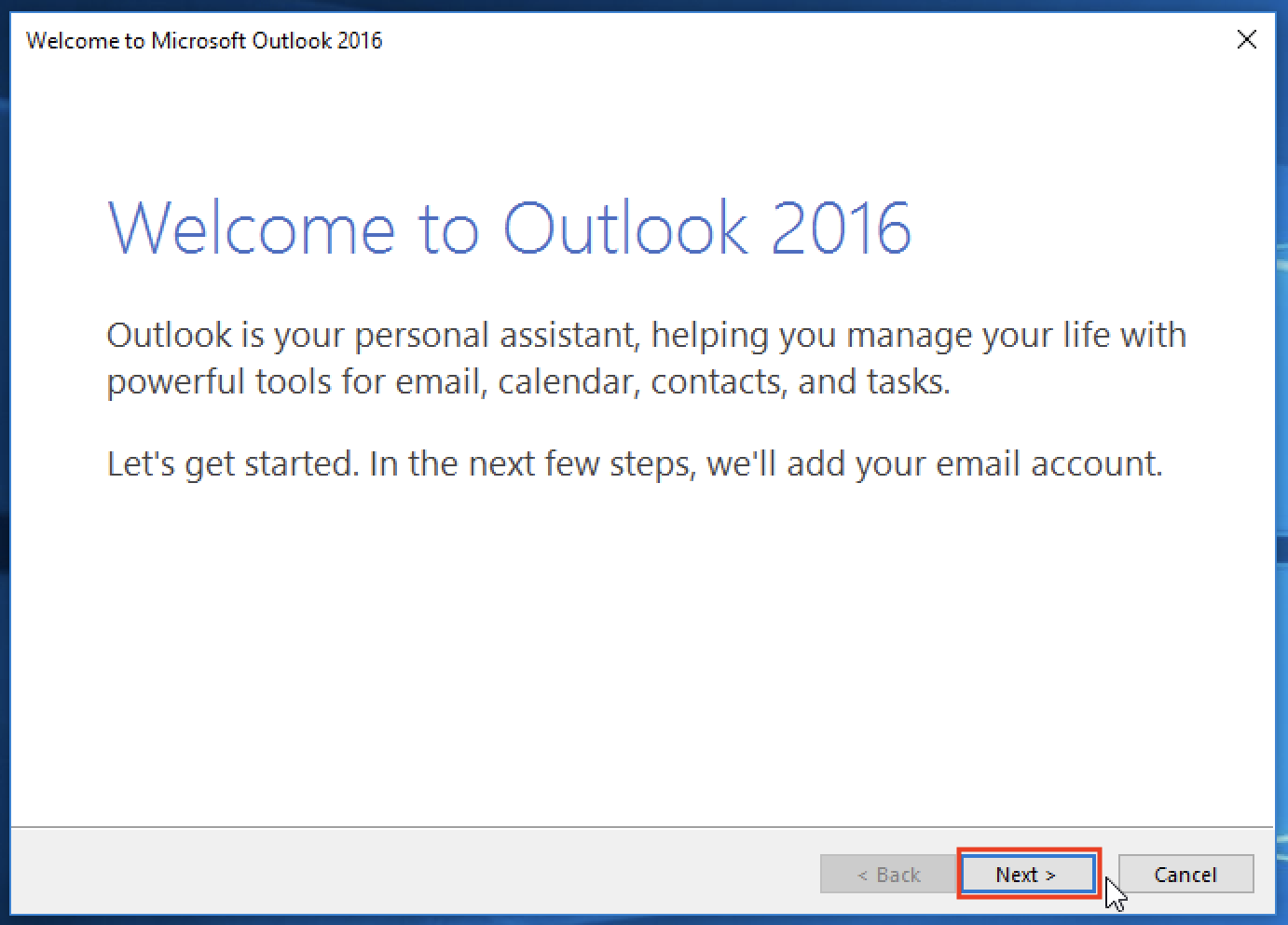
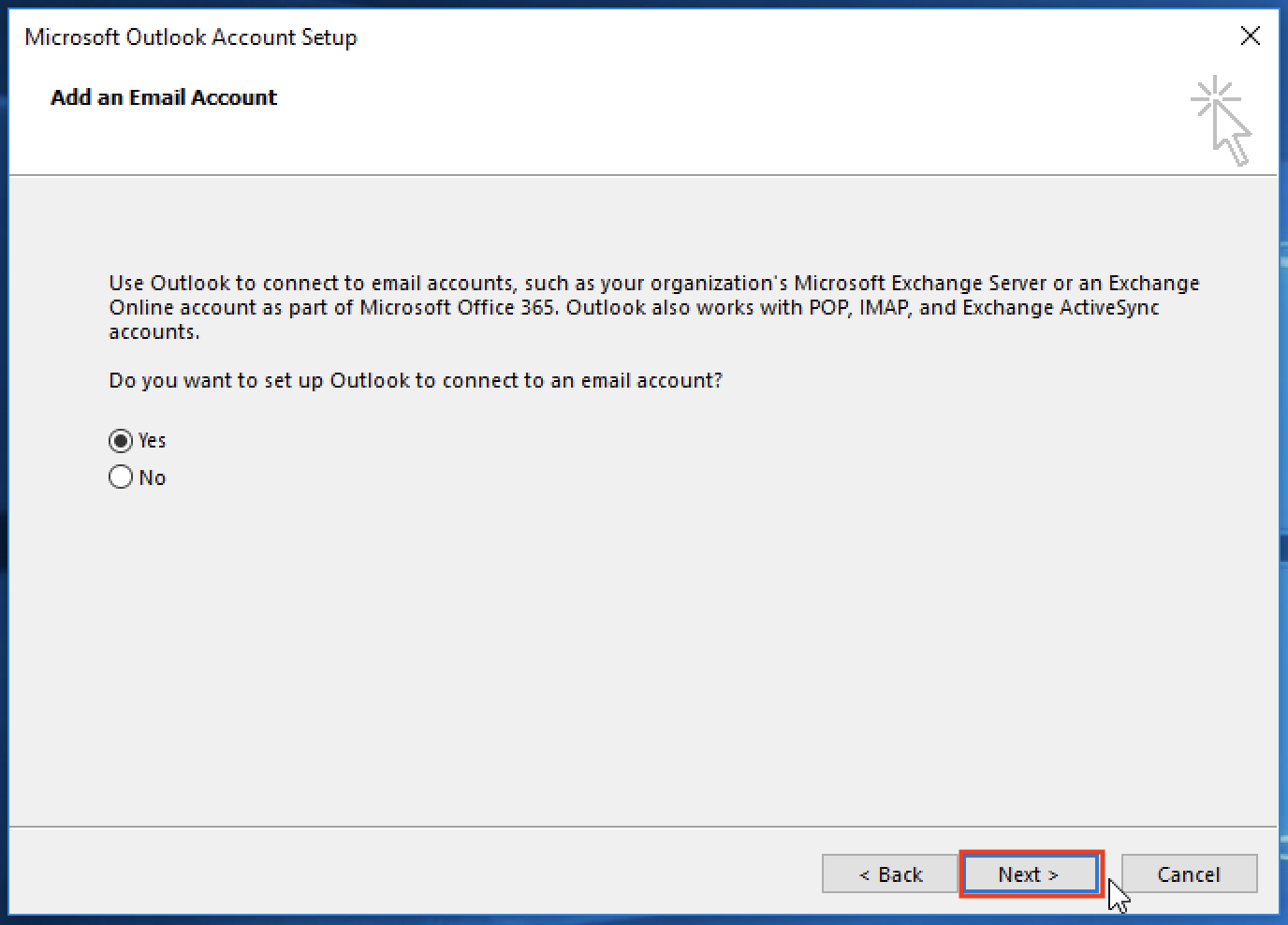
Click Next.
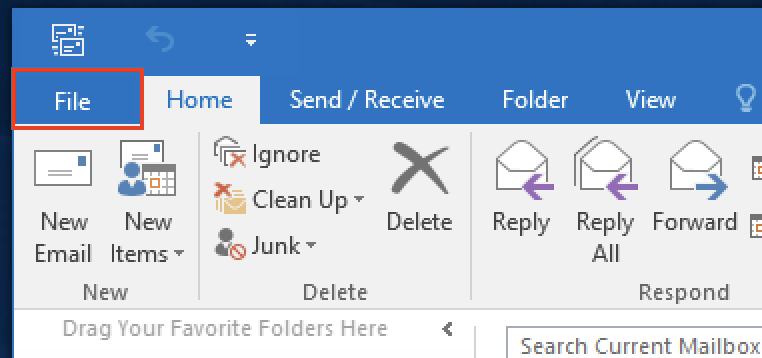
If you are adding another account to Outlook, click File.
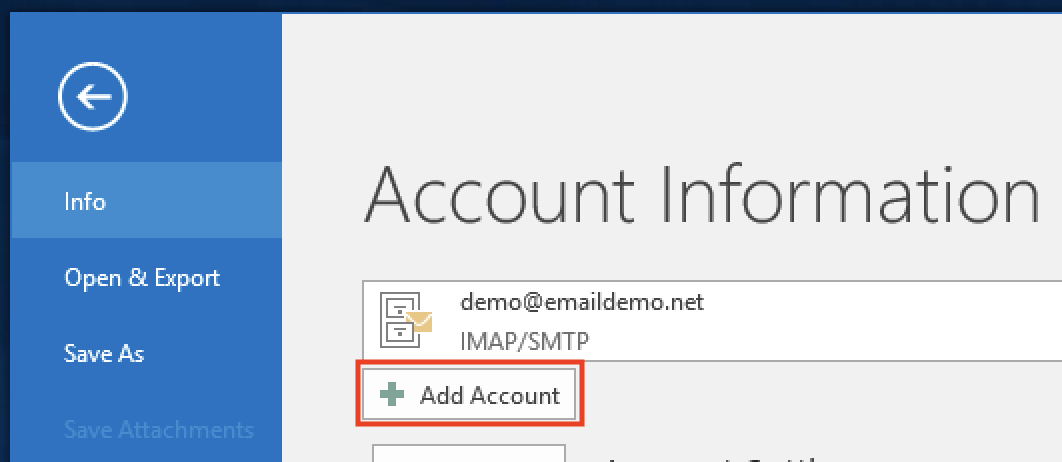
Click Add Account.
Step 3: Enter your details
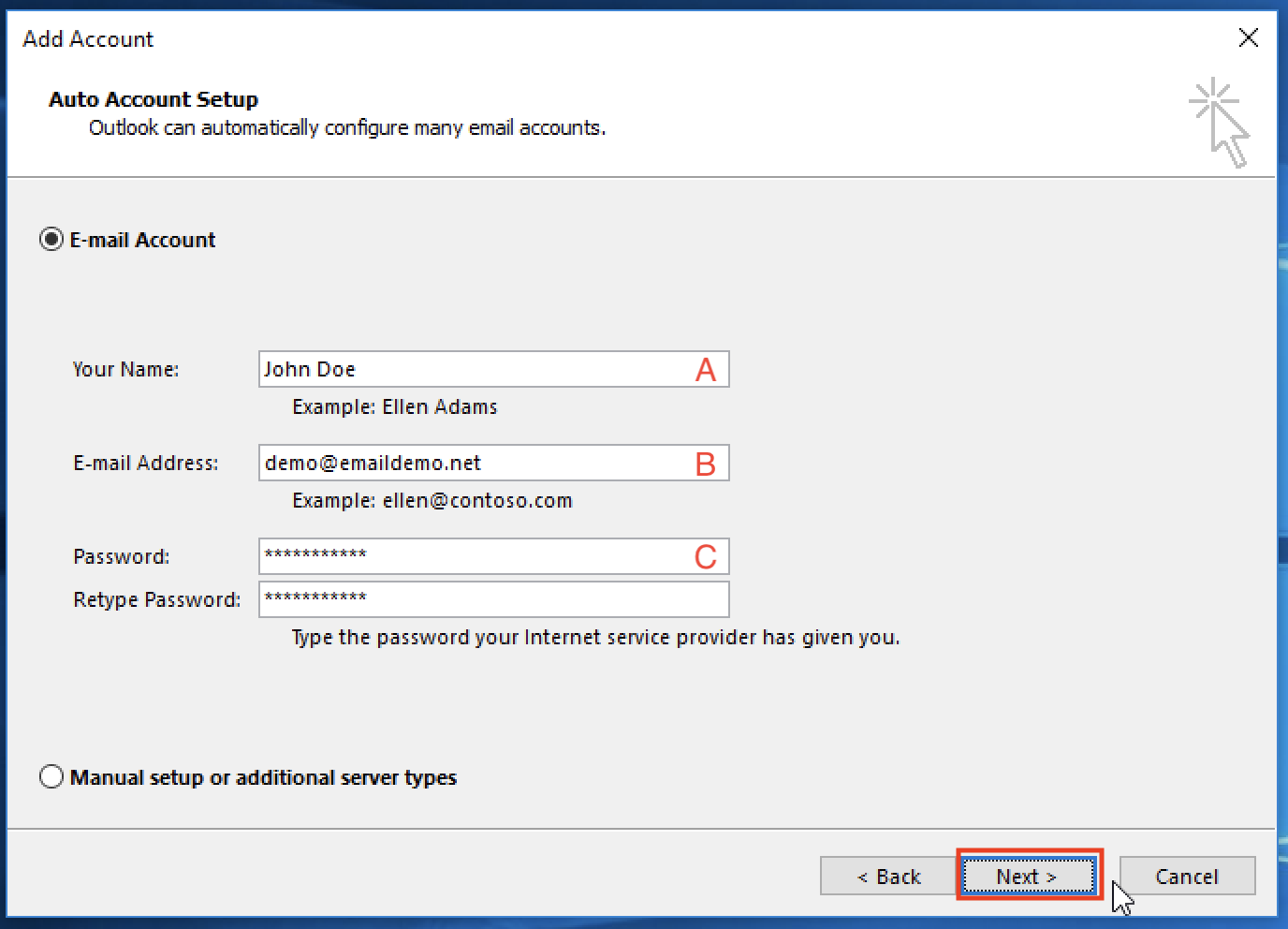
Fill in the following, then click Next.
A) Your name. Recipients see this on all outgoing messages.
B) Your email address
C) Your password, typed twice
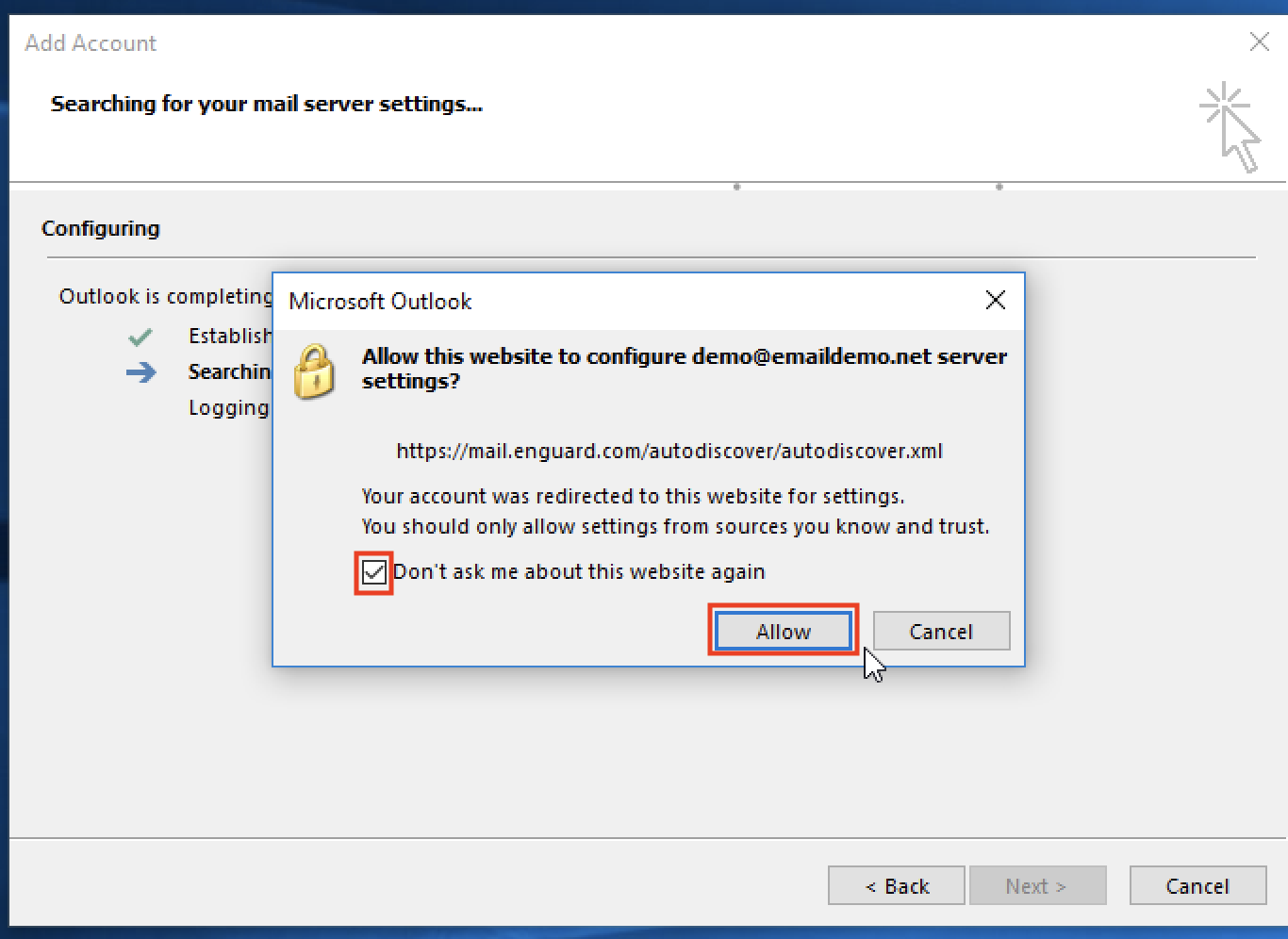
Step 4: Allow the website
Check the box for Don't ask me about this website again and click Allow.
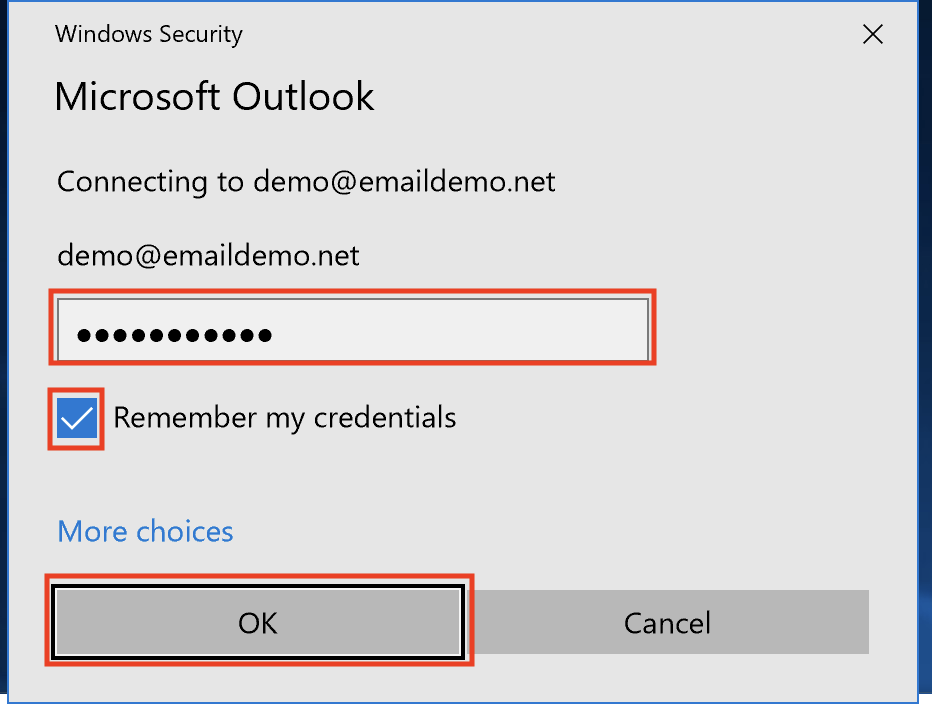
Step 5: Enter your password
Enter your password again, check Remember my credentials and click OK.
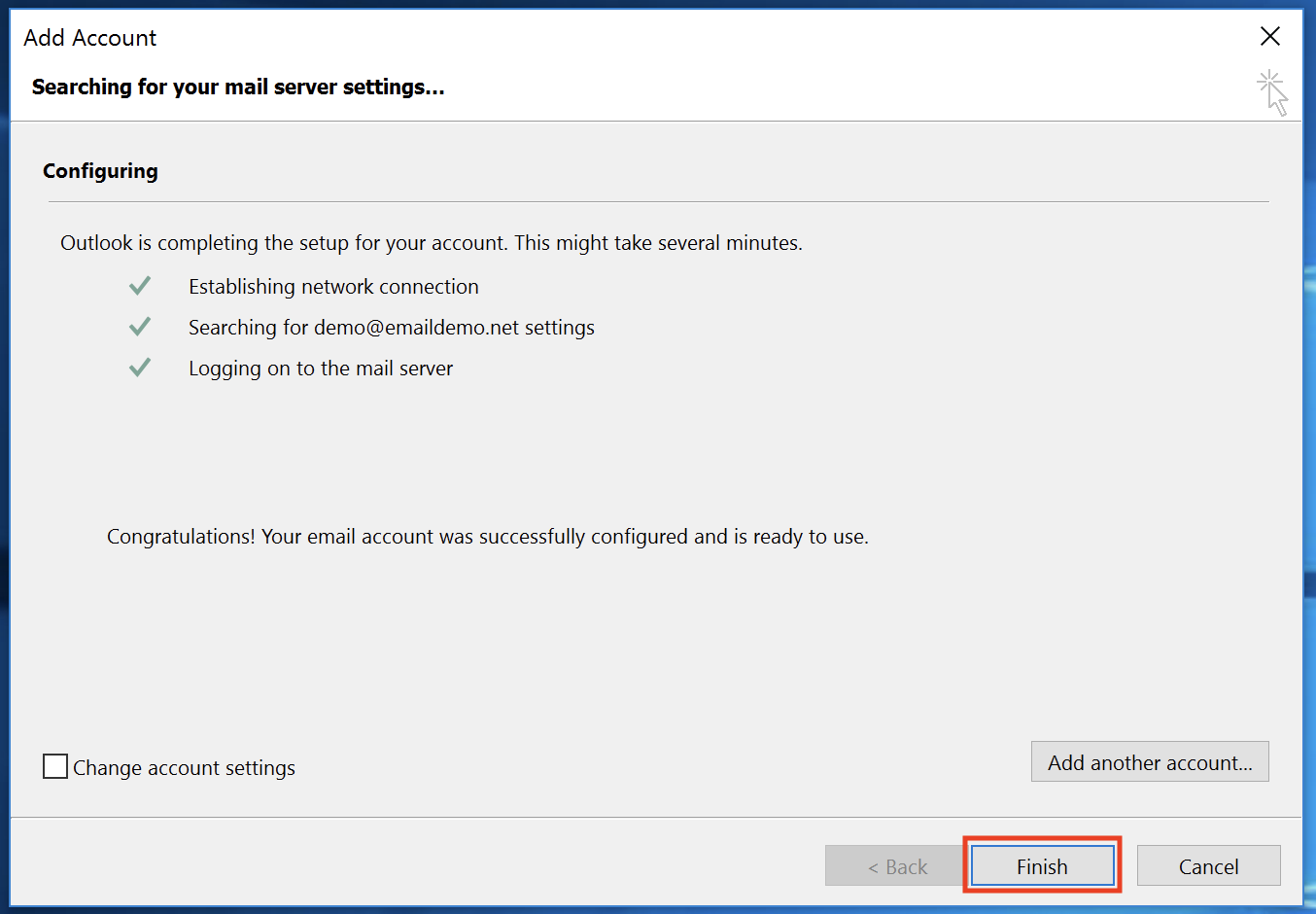
Step 6: Finish
Click Finish.
Step 7: Let Outlook sync
Wait for your folders to update. Leave Outlook open until it only says All folders are up to date near the bottom right. This can take a few hours, depending on how much email you have.
When syncing finishes, restart Outlook.
