Manage DNS Records
Add or remove DNS records for a domain that uses our name servers.
This is for customers whose domains are registered with us and/or whose DNS is managed by us.
- If your domain uses our name servers, you can manage its DNS zone in My Account.
- If your domain uses external name servers, your DNS zone is hosted somewhere else and you cannot manage it here.
DO NOT change your DNS records unless you absolutely know what you are doing. Wrong data or syntax can break your email service and/or website. If you are unsure, email our support team and we will change your DNS records for you.
Step 1: Open Manage DNS
There are a few places to find Manage DNS.
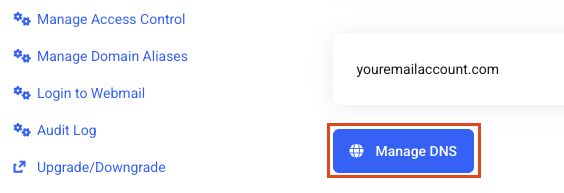
From the Email Management area, find the Manage DNS button.
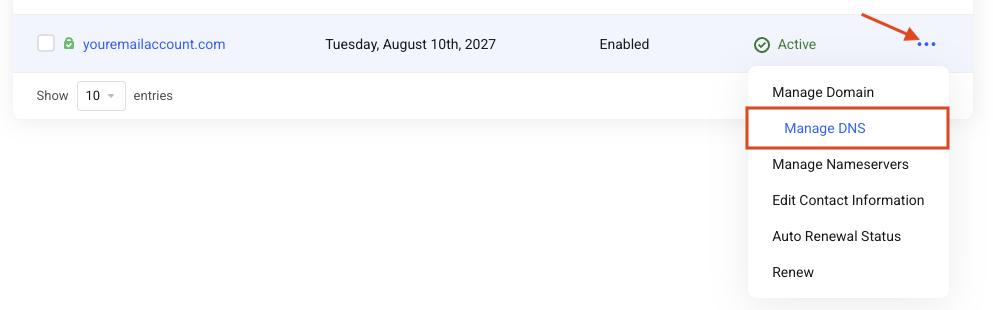
If your domain name is registered with EnGuard, go to Domains, click the 3 dotted menu and select Manage DNS.
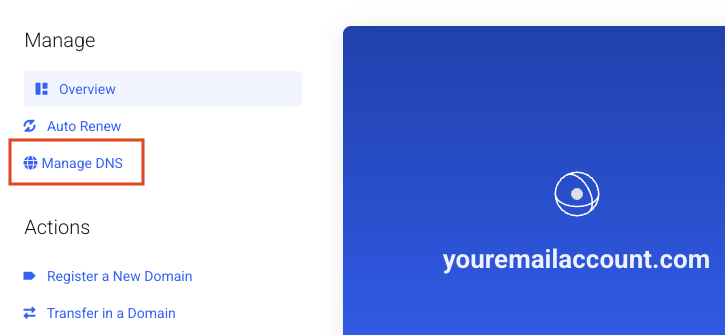
You can also click into your registered domain name with us and click Manage DNS under Manage.
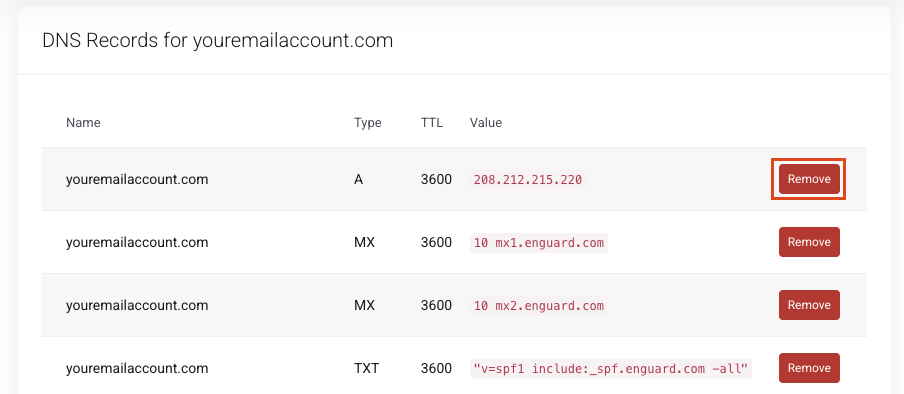
Step 2: Delete a record
Click the Remove button to delete a record.
Step 3: Add a record
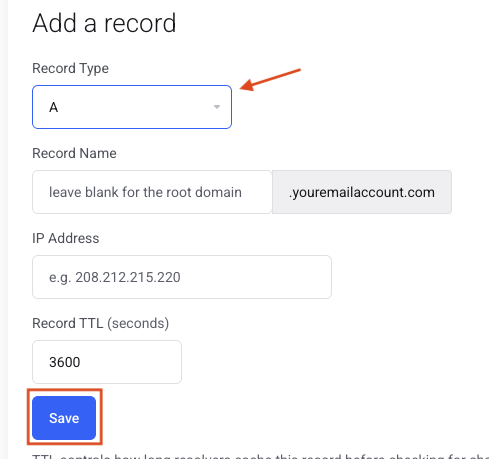
To add a new DNS record, scroll down to the Add a record section.
Choose the Record Type from the drop-down menu and add the information.
We support these DNS records: A (@), AAAA, CNAME, MX, TXT, SRV and CAA.
Click Save.