Change Password for Account Owner
Change the password for the My Account owner.
Step 1: Open Change Password
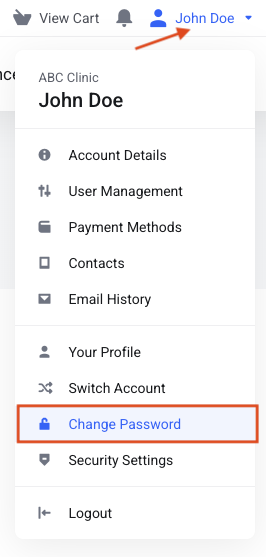
Click your name at the top right of the page. In the drop-down menu, click Change Password.
Step 2: Enter your passwords
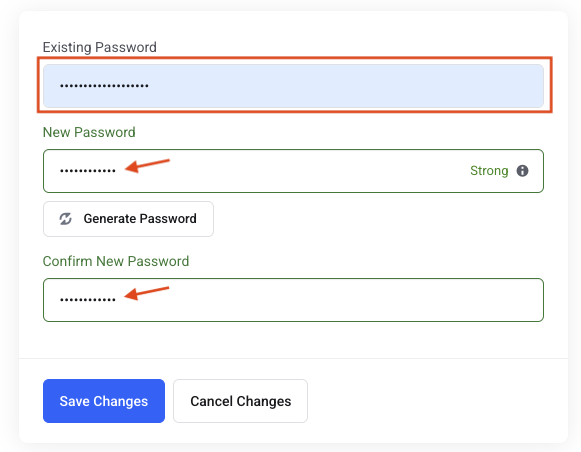
Enter your existing password, then type your new password twice.
Your password must:
- have at least 8 characters and at most 20,
- include 1 uppercase letter, 1 lowercase letter, 1 number, and 1 special character or symbol,
- not contain any part of your email address, name, domain name, business name, or common words or strings (for example password or 123456789).
Instead of words you can find in a dictionary, replace some letters with symbols or numbers. For example, use D1git@L rather than Digital. Complex passwords are more secure. We also recommend changing your password at least once a year, or more often for extra protection.
Step 3: Save
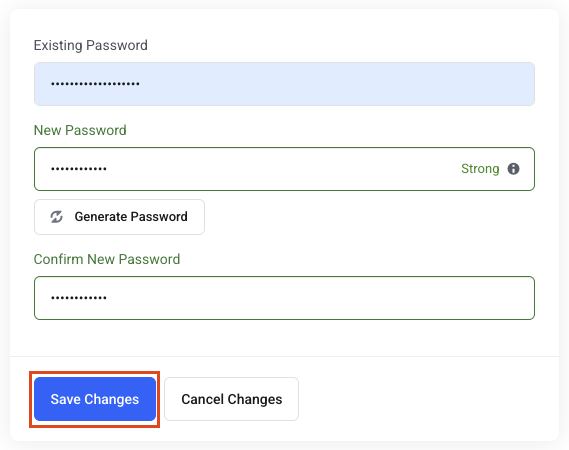
Click the blue Save Changes button.