Delete an Email Account
Permanently delete an email account, and what we can restore if it was a mistake.
Deleting an email account is immediate and permanent. The mailbox and everything in it is removed right away.
If you delete one by mistake
Your service includes hourly backups, kept for 7 days. If you delete an account by mistake, contact us within 7 days and we can restore it for a $50 fee. We restore from the most recent hourly backup, so mail that arrived between that backup and the deletion is not part of the restore. After 7 days the backup is gone, and the account cannot be restored from a backup.
Neither kind of recovery is self-service. To ask for a restore or an archive recovery, contact our Support Team. If you deleted an account by mistake, call or email us as soon as you can, because the 7-day window starts the moment you delete.
If you have Real Time Backup
If you subscribe to our Real Time Backup service, there is no 7-day deadline. We keep a separate copy of every message sent and received on your domain for as long as you are a customer, and deleting an account does not affect that archive. Archive recoveries are free. Within the 7-day window, we can pair a $50 hourly restore with a free archive pull to fill in the mail the backup missed. After 7 days, we can still rebuild the mailbox from the archive alone at no charge.
A rebuild from the archive brings back messages, not the mailbox structure. Everything the user sent or received comes back, but it all arrives in the Inbox and Sent Items folders. Custom folders are gone, and messages filed in them go to the Inbox. Calendar, Drafts, Contacts, Tasks, Notes and Files in File Storage are not recovered. Archiving is also not retroactive: it only covers messages sent or received after the service was turned on for your domain.
How to delete an email account
Step 0: Open your email management page
See this short guide to get to the page where you manage a domain's email service: How to Get to Your Email Management Page
Step 1: Open Manage Users
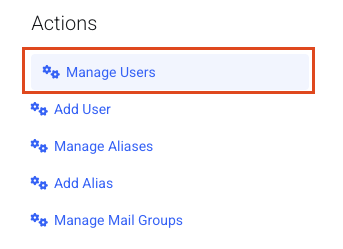
Click Manage Users.
Step 2: Delete one account
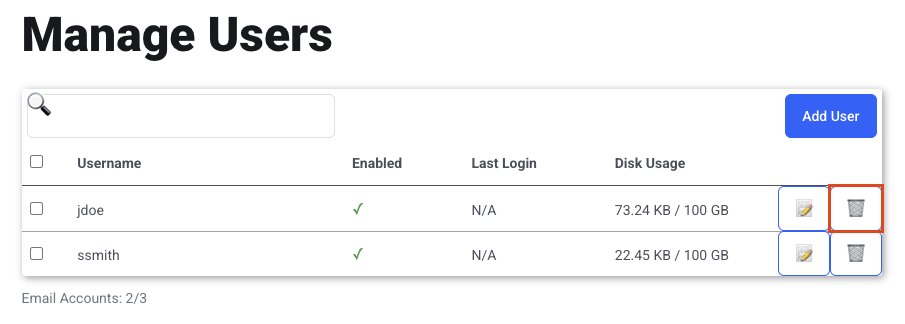
Click the trash can icon for the email account you want to delete.
Step 3: Or delete several
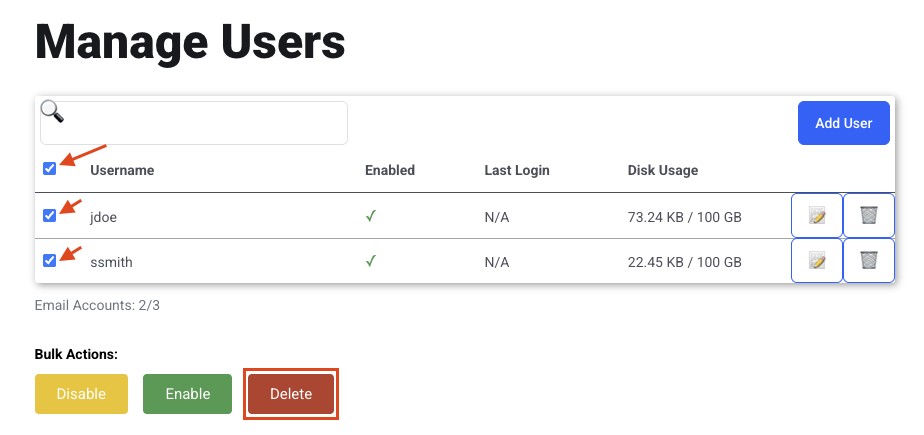
To delete multiple users, select all of them or pick the individual accounts.
Click Delete.