

Rename an Email Address
Change an email address without losing the mailbox, password or settings.
Renaming is handy when someone changes their name, or when an address goes to a new hire. It only changes the address itself. The password, contents and all other settings stay the same.
In this example, we change jdoe@youremailaccount.com to jsmith@youremailaccount.com.
Step 0: Open your email management page
See this short guide to get to the page where you manage a domain's email service: How to Get to Your Email Management Page
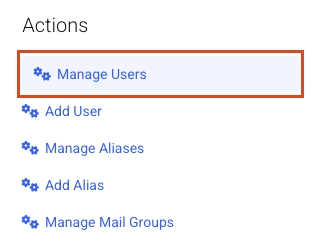
Step 1: Open Manage Users
Click Manage Users.
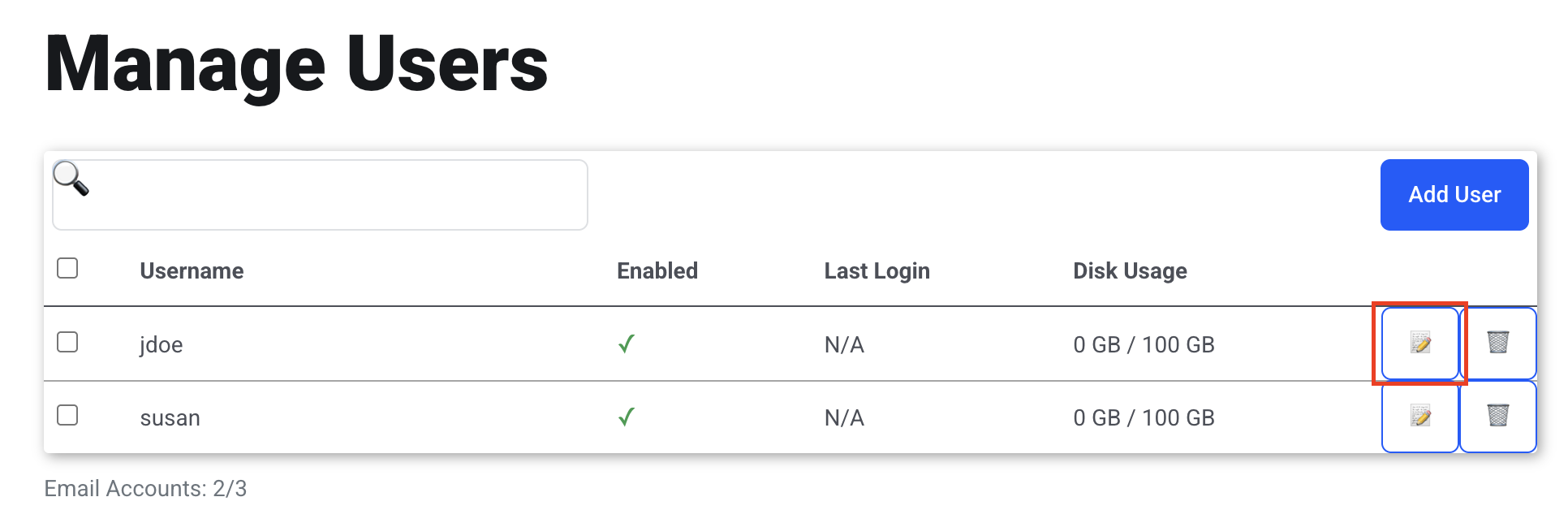
Step 2: Edit the user
Click the pencil icon for the user you want to rename.
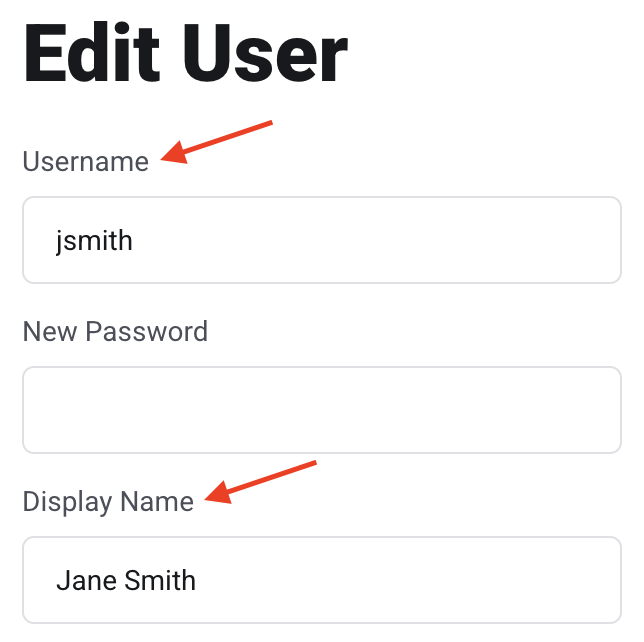
Step 3: Change the username
Delete what's in the Username field and type the new address name. For example, change jdoe to jsmith.
You do not have to change anything else. But you may want to set a new password and update the Display Name so it matches the new name.
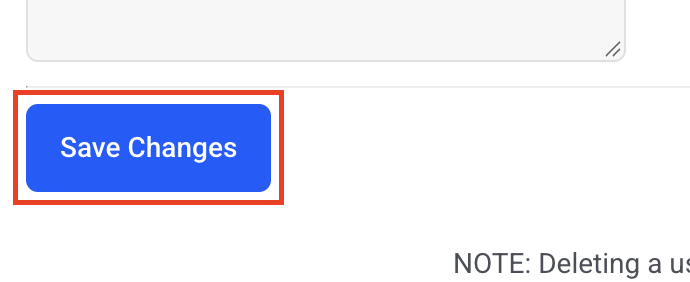
Step 4: Save
Click Save Changes.
Step 5: (Optional) Keep the old address working
Set up the old address as a mail alias. That way the renamed address keeps getting email sent to the old one.
To do this, follow this tutorial: Create a Mail Alias / Mail Forwarding Email Address