Forward Email to Another User
Forward a user's incoming email to another user on your domain.
This is useful if you will be out of the office and want someone else to receive and reply to your email. Or if you want a copy of your incoming email forwarded to another user permanently. You can also turn auto-forwarding off in webmail, so you stay in full control.
Automatic forwarding only works for internal users within your domain name. Forwarding to an outside email address or domain is not HIPAA compliant, and our system blocks it.
Step 0: Open your email management page
See this short guide to get to the page where you manage a domain's email service: How to Get to Your Email Management Page
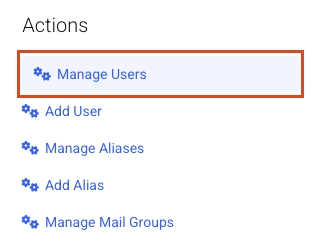
Step 1: Open Manage Users
Click Manage Users.
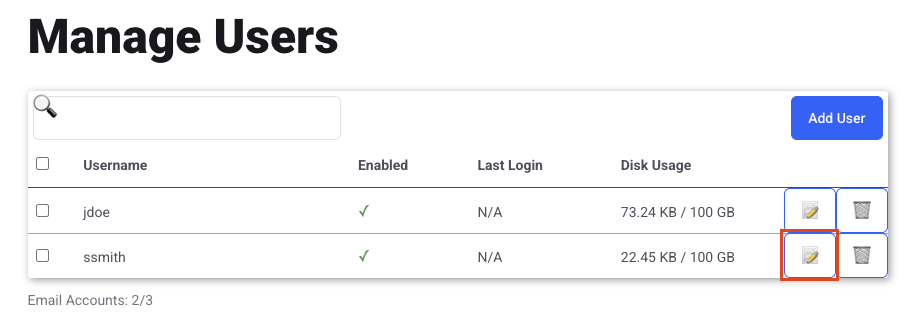
Step 2: Edit the user
Click the pencil icon for the user you want to set up forwarding for.
Step 3: Fill out the Mail Forwarding section
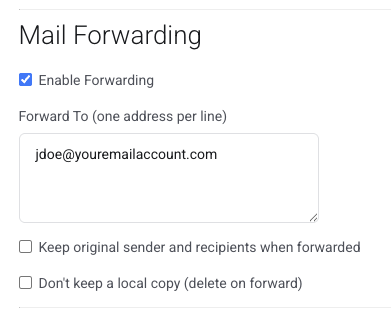
Enable Forwarding
By default, users can set an auto-forward address in webmail. Uncheck this box to turn that off.
Forward To
Enter the email address, or several addresses, to forward your incoming email to. In this example, Susan forwards her email to John. The address must be within your domain name. We do not allow auto-forwarding to an address outside our system (for example gmail.com, yahoo.com or otherdomain.com). That would be a HIPAA violation.
Keep original sender and recipients when forwarded
If sales@example.com emails ssmith@youremailaccount.com, the message looks like that when forwarded to John. If you do not check this box, the forwarded "from" address is ssmith@youremailaccount.com instead of sales@examples.com. We recommend checking this box.
Don't keep a local copy (delete on forward)
By default, you get a copy of all new email in your inbox and a copy is forwarded to the address set here. If you check this box, new incoming messages are deleted from your inbox and only forwarded to the other user (for example, during maternity leave).
Step 4: Save
Click Save Changes.