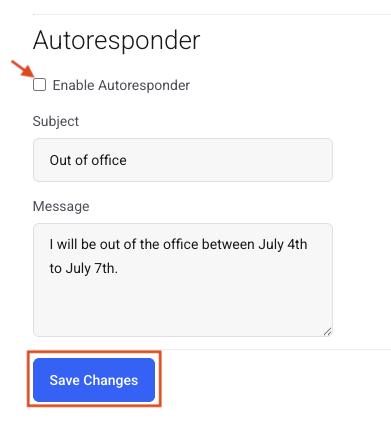
Create an Autoresponder
Set up an out-of-office auto-reply for any email account.
An autoresponder is also known as an auto-reply or out-of-office reply. It automatically tells anyone who emails you that you are not answering email for a while. You can create and turn on an autoresponder for any email account in My Account.
Step 0: Open your email management page
See this short guide to get to the page where you manage a domain's email service: How to Get to Your Email Management Page
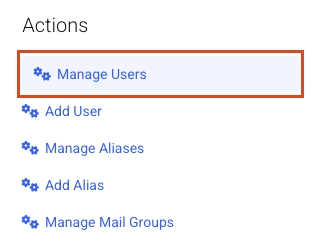
Step 1: Open Manage Users
Click Manage Users.
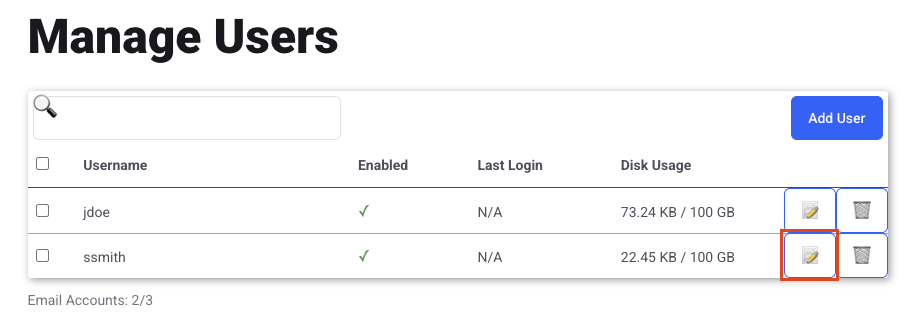
Step 2: Edit the user
Click the pencil icon for the user you want to create an autoresponder for.
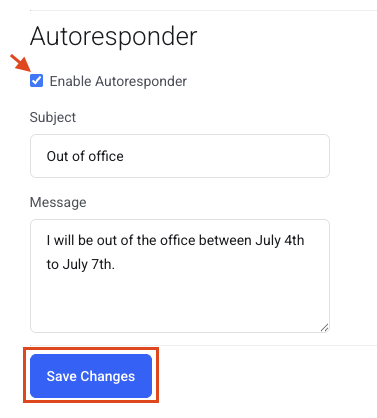
Step 3: Fill out the Autoresponder section
- Enable Autoresponder: put a check in this box.
- Subject: type a subject.
- Message: type a message.
Click Save Changes.
Step 4: Turn it off when you are back
Do not forget to turn the autoresponder off when you are back in the office.
Return to the Edit User page for the email address.
- Uncheck Enable Autoresponder.
- Click Save Changes.