Two-Factor Authentication
Turn on Two-Factor Authentication for your email, log in with it, and what to do if you lose your phone.
2FA adds an extra layer of security. Even if someone gets your password, they still cannot get into your account without the second step.
Once it is on, logging in to Webmail takes two things instead of one: your password and a verification code only you can get. You can get the code two ways:
- From a free app like Google Authenticator, Microsoft Authenticator or Duo Mobile (on iOS and Android)
- Sent to a Recovery Email Address
Part 1: Turn on 2FA
Step 1: Open Settings
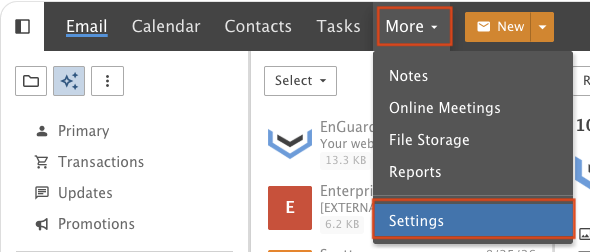
Click the More drop-down menu and choose Settings.
Step 2: Click Enable
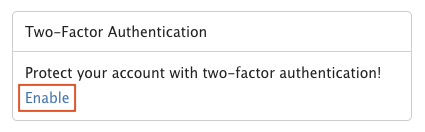
Find the Two-Factor Authentication tile and click Enable.
Option A: Use a mobile app
To use a recovery email address instead, skip to Step 5.
Step 3: Choose Authenticator App
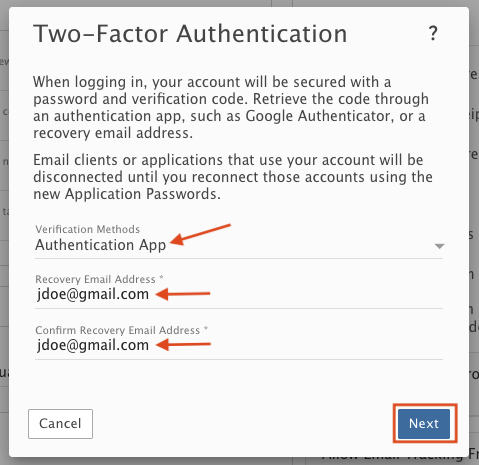
To get your verification code with a mobile app, select Authenticator App from the drop-down.
Enter an external email address as a backup in case you lose your phone or app. Click Next.
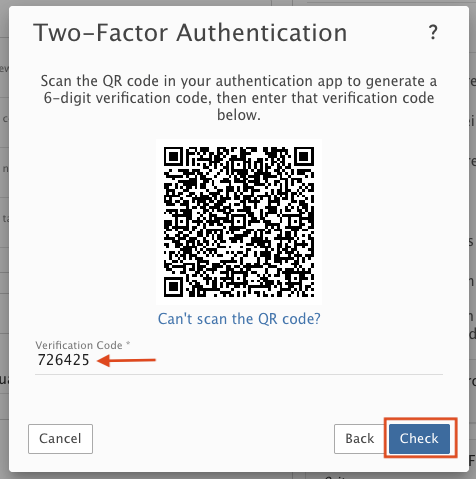
Step 4: Scan the code
Scan the QR code with your mobile app. Enter the verification code and click Check.
Option B: Use a recovery email address
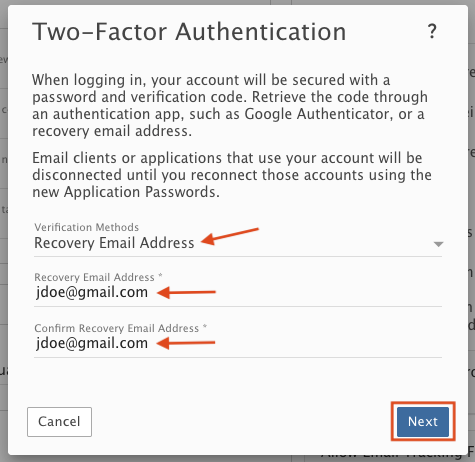
Step 5: Choose Recovery Email Address
To get your verification code at an external email address, select Recovery Email Address from the drop-down.
Enter your external email address and click Next.
Step 6: Enter the code
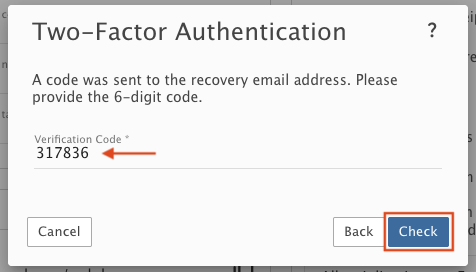
Wait for the verification code to arrive at your external email address. Check your junk folder if you do not see it.
Enter the verification code and click Check.
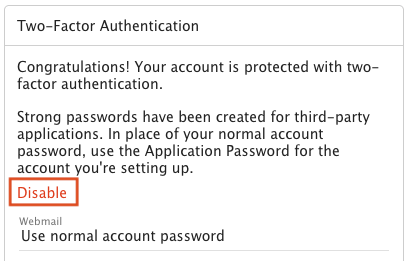
Two-Factor Authentication is now on. You will need to get a new code each time you log in to Webmail.
Part 2: Manage 2FA
Step 7: Turn 2FA off
To turn off Two-Factor Authentication, click Disable.
Step 8: Get a password for your other devices and apps
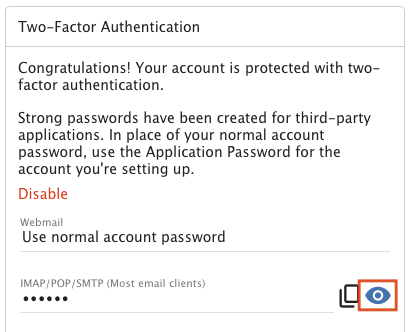
To add your email account to a mobile device, desktop software or chat application, your normal password will not work. You must use a password generated by the Two-Factor Authentication feature. Click the eye icon to see it.
Step 9: Copy the password
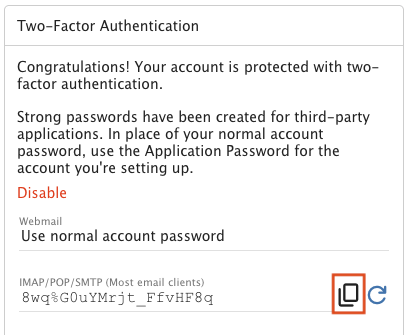
Click the copy icon to copy the password. Then paste it into your desktop application.
Step 10: Reset the password
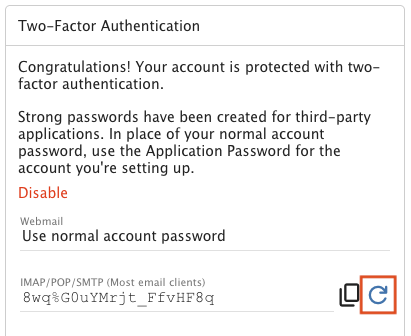
To reset a password, click the Refresh Icon.
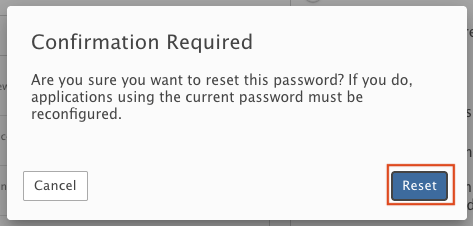
Click Reset.
Part 3: Log in with 2FA
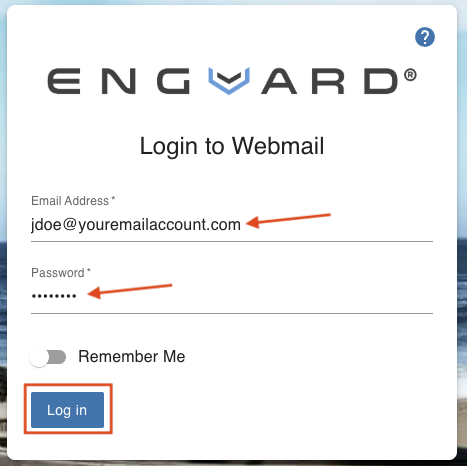
Step 11: Log in
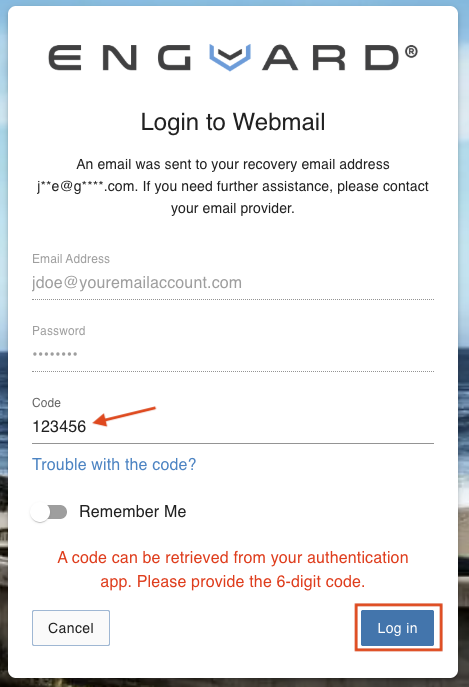
Log out of Webmail. On the Webmail login page, enter your email address and password and click Login.
Step 12: Enter your code
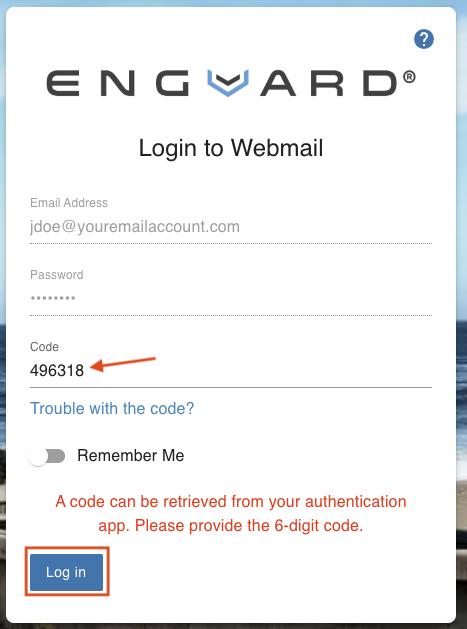
Open your Authenticator app, or wait for the verification code to arrive by email (if you set up a Recovery Email Address).
Enter the code and click Login.
If you lose your phone or app
Step 13: Click Trouble with the code
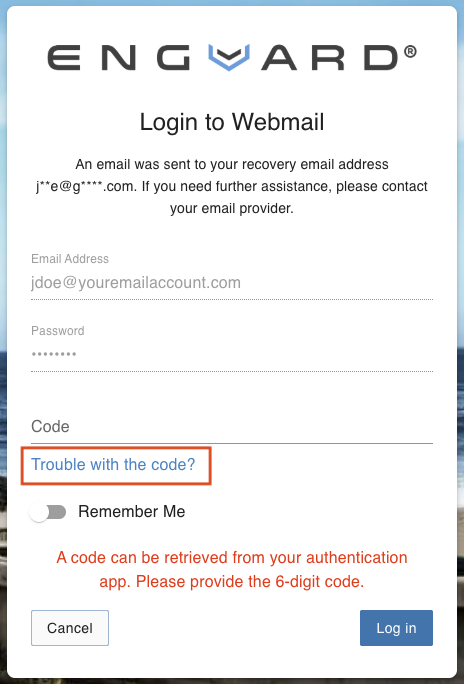
If you lose your mobile app or phone, you can get your verification code at your recovery email address.
Click Trouble with the code?
Step 14: Enter the code from your email
Wait for the verification code at your recovery email address. Check your junk folder if you do not see it.
Enter the code and click Login.