Recall an Email with Delay Send
Hold outgoing messages for a few seconds so you can recall them, and how to change or turn off the delay.
Delay Send holds every outgoing message for up to one minute before it goes out (the default is 5 seconds). That gives you time to recall a message you sent by mistake.
Messages held by Delay Send show in your Sent Items folder with an indicator until they are sent.
Change the delay or turn it off
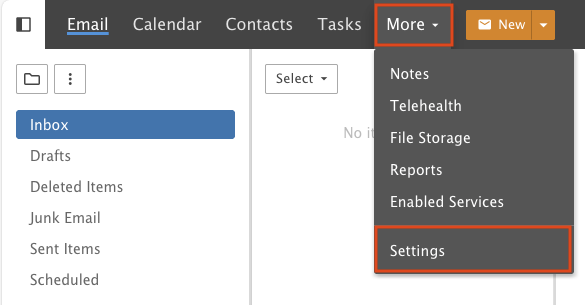
Step 1: Open Settings
Go into Settings from the More drop-down menu.
Step 2: Pick a delay
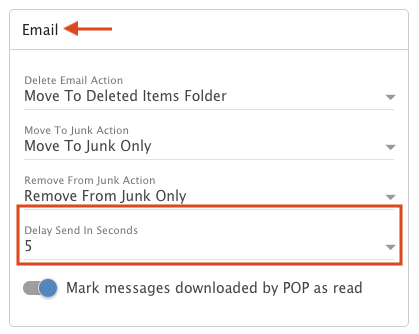
Find the Email tile and choose a setting from the Delay Send In Seconds drop-down.
Options are Disabled, 5, 15, 30 or 60 seconds.
Step 3: Save
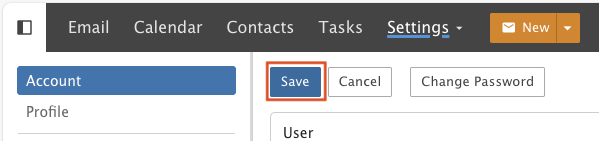
Click Save.
Recall a message
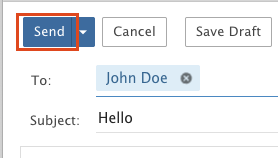
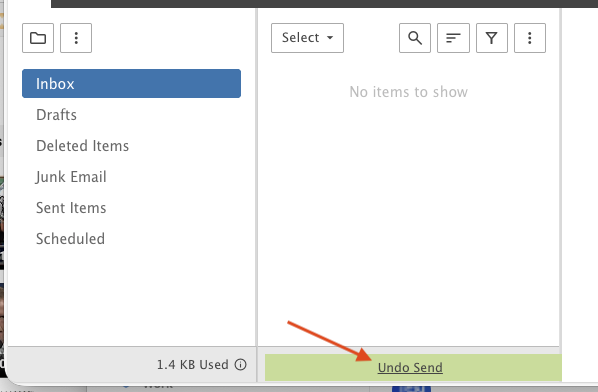
After you click Send, click Undo Send at the bottom of the message column. The email goes straight back into your Drafts folder. There you can edit it, change it or delete it before it is actually sent.
Skip the delay
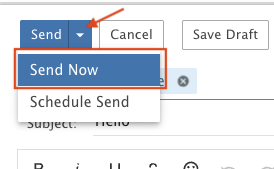
To send right away, click Send Now in the Send drop-down.