Send an Email Later with Scheduled Send
Pick a date and time for an email to be sent later.
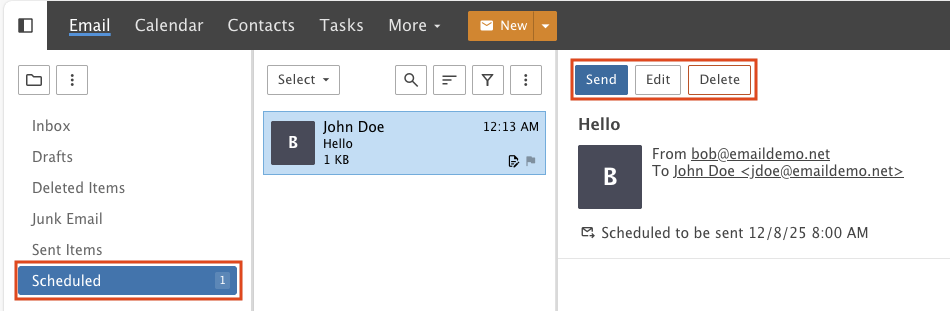
Scheduled Send lets you pick a date and time for a message to be sent. Because the message waits longer, it goes into a default folder called Scheduled.
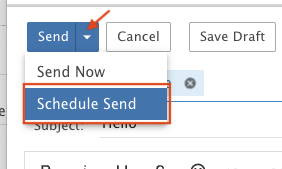
Step 1: Choose Scheduled Send
Click Scheduled Send in the Send drop-down.
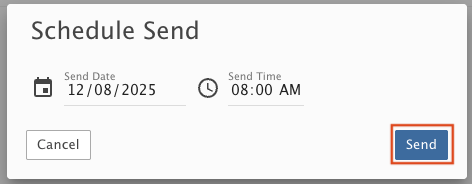
Step 2: Pick a date and time
Set the Send Date and Send Time, then click Send.
Step 3: Find it in the Scheduled folder
The email goes into the Scheduled folder. From there you can send it now, edit it or delete it.