

Changing your password
Change your own password in webmail, if your administrator has turned this on.
Password changes in webmail are turned off by default. Only your administrator can change your password through My Account.
You can use the steps below only if your administrator has turned on password changes in webmail.
Step 1: Open Settings
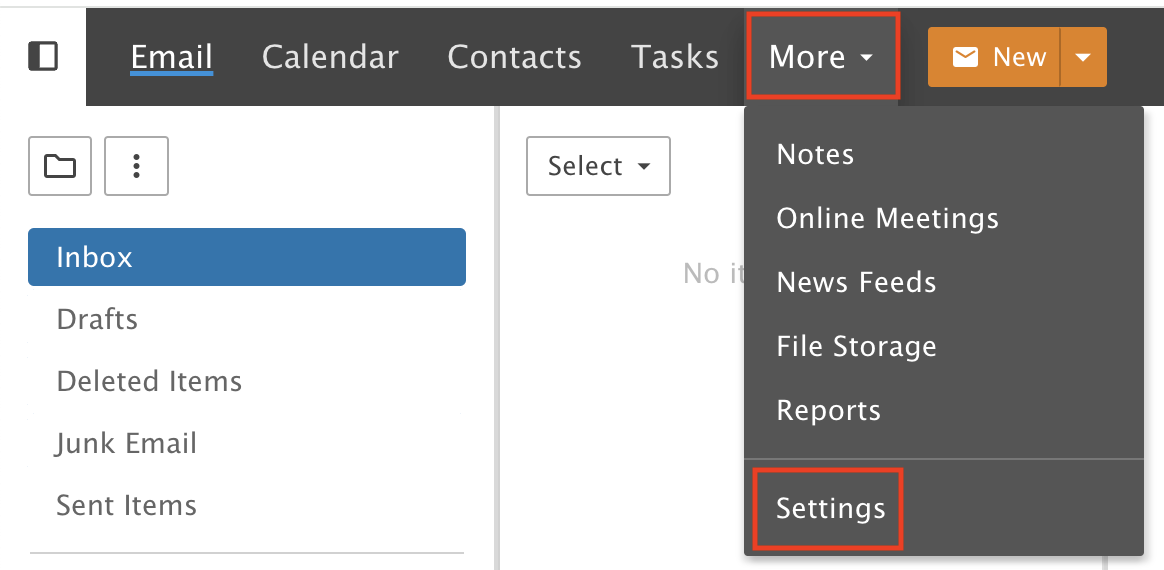
Click the More drop-down menu and choose Settings.
Step 2: Open Change Password
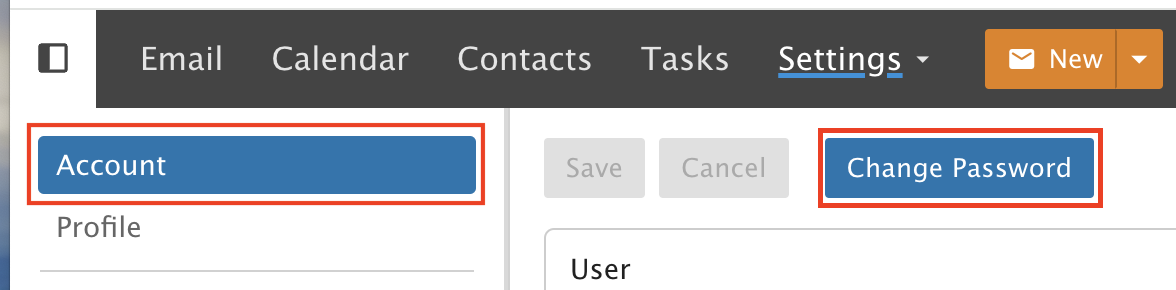
In the Account menu, click Change Password.
Step 3: Set your new password
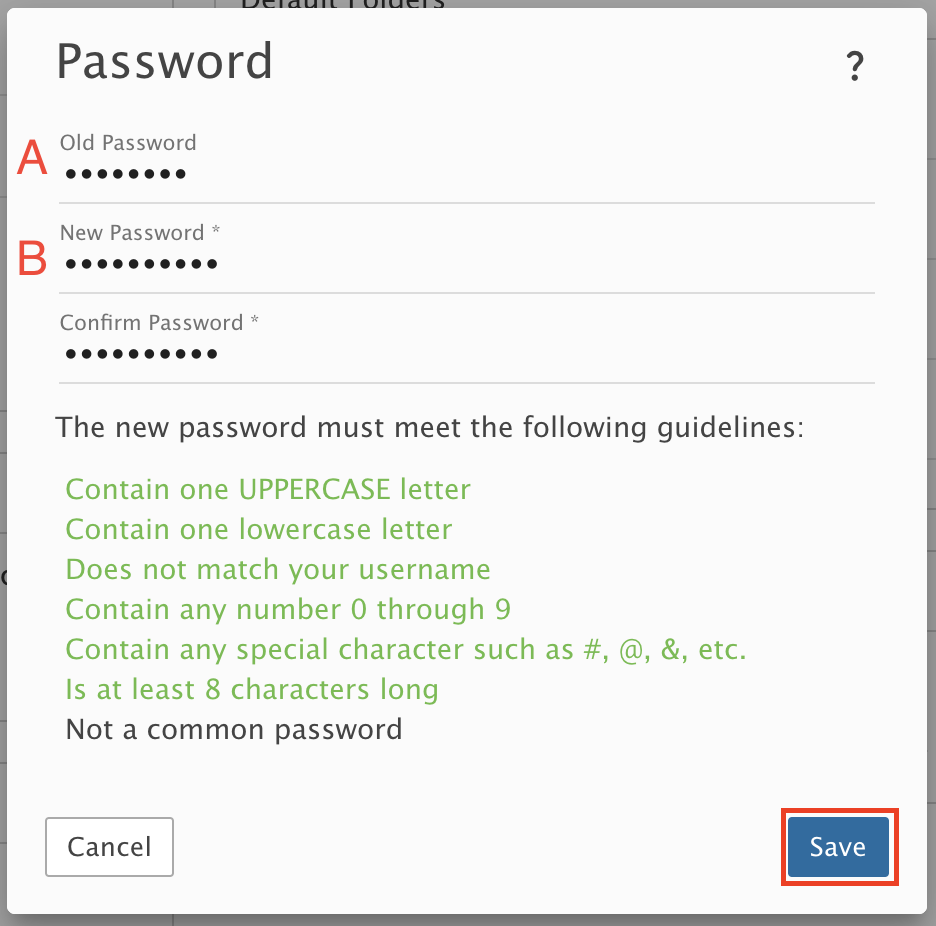
A) Enter your current password.
B) Enter your new password twice.
Click Save.
Password rules
Your password must have:
- At least 8 characters and no more than 20
- 1 uppercase letter
- 1 lowercase letter
- 1 number
- 1 special character or symbol
Your password must not contain any part of your email address, name, domain name or business name. It also must not contain common words or strings, such as password or 123456789.
Do not use plain dictionary words. Swap some letters for symbols or numbers instead. For example, use D1git@L rather than Digital. Complex passwords are more secure. We also recommend changing your password at least once a year.