Creating an Autoresponder / Auto-reply / Out of Office reply
Set up an out of office auto-reply in webmail, with start and end dates.
Step 1: Open Settings
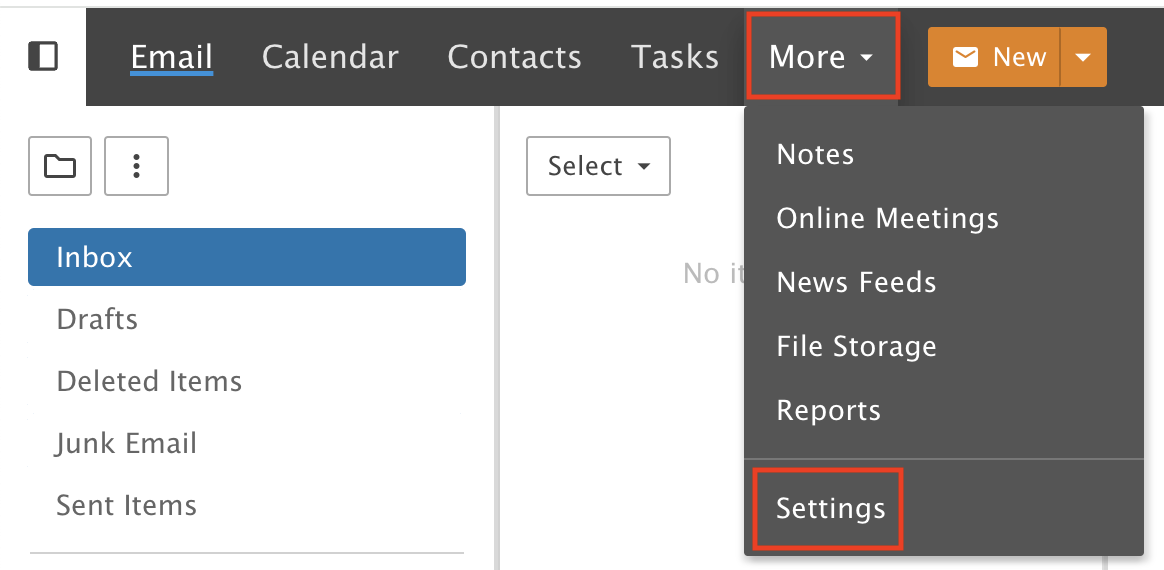
Click the More drop-down menu and choose Settings.
Step 2: Open Autoresponder
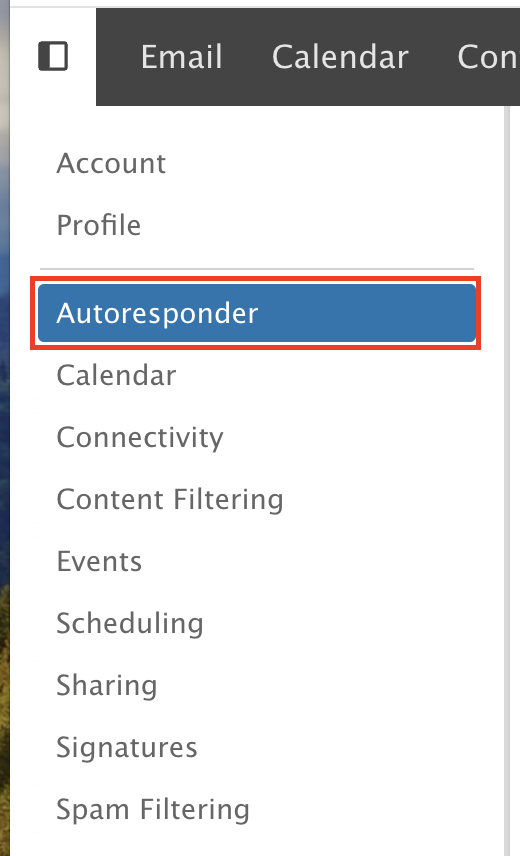
Click Autoresponder in the left menu.
Step 3: Write your message
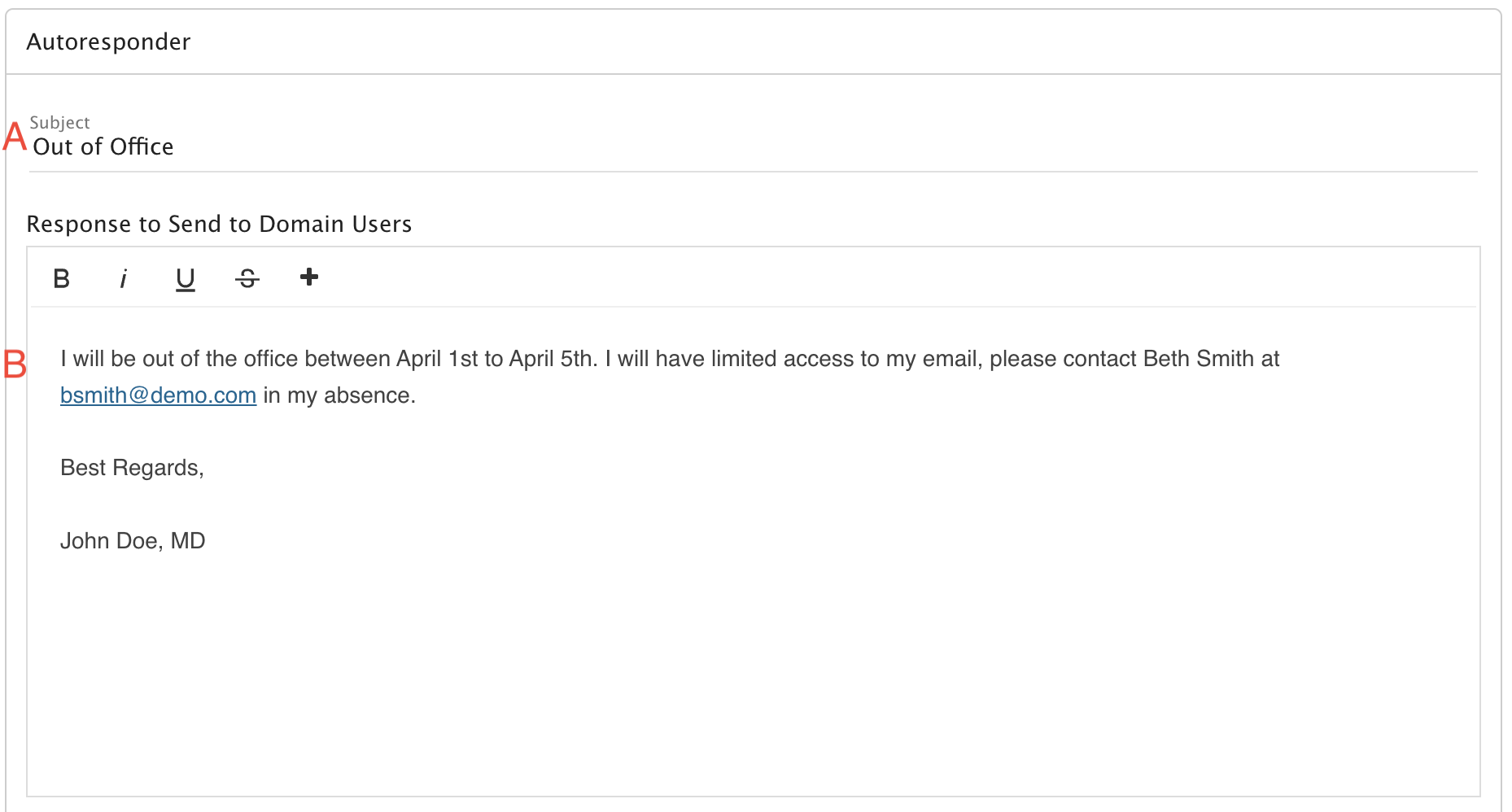
A) Enter a subject.
B) Write your message in the Response to Send to Domain Users box.
Step 4: Copy it to the second box
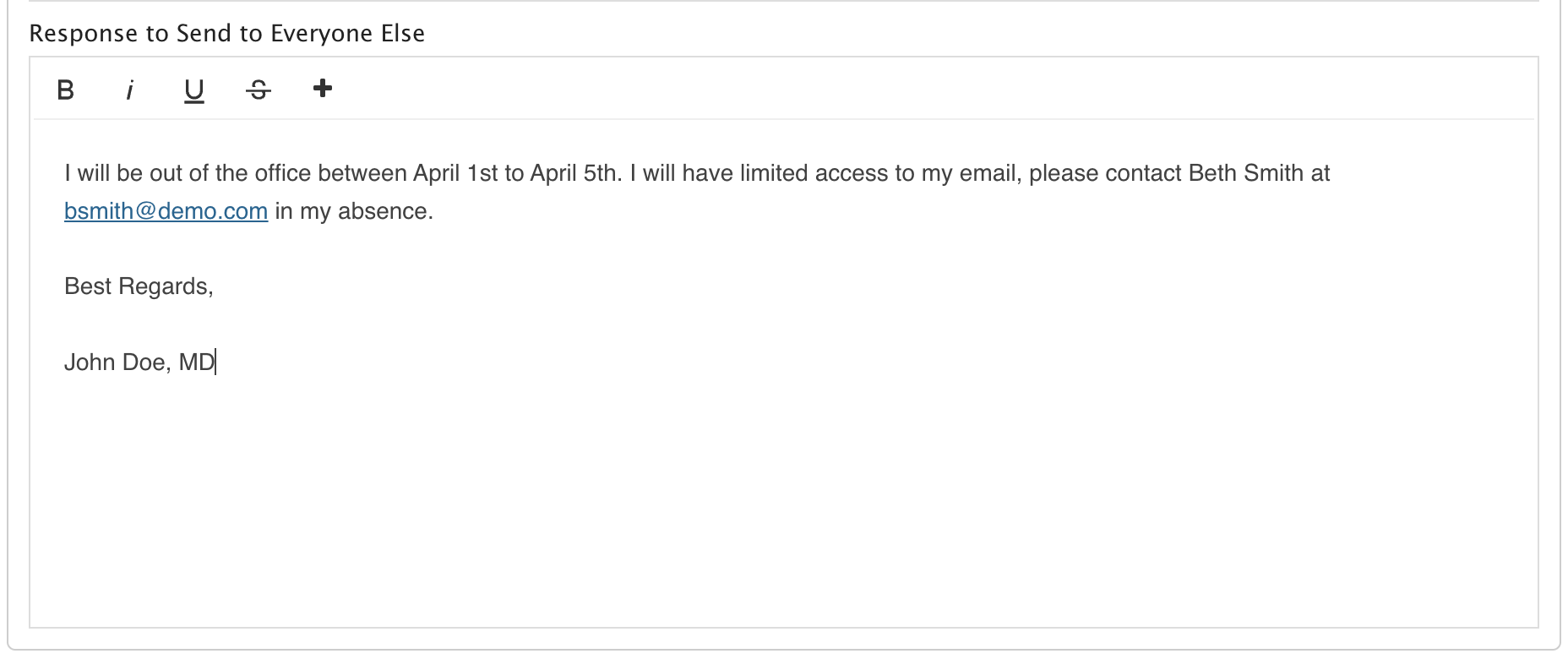
Copy the text from the top Response to Send to Domain Users box. Paste it into the bottom Response to Send to Everyone Else box.
Step 5: Set your options
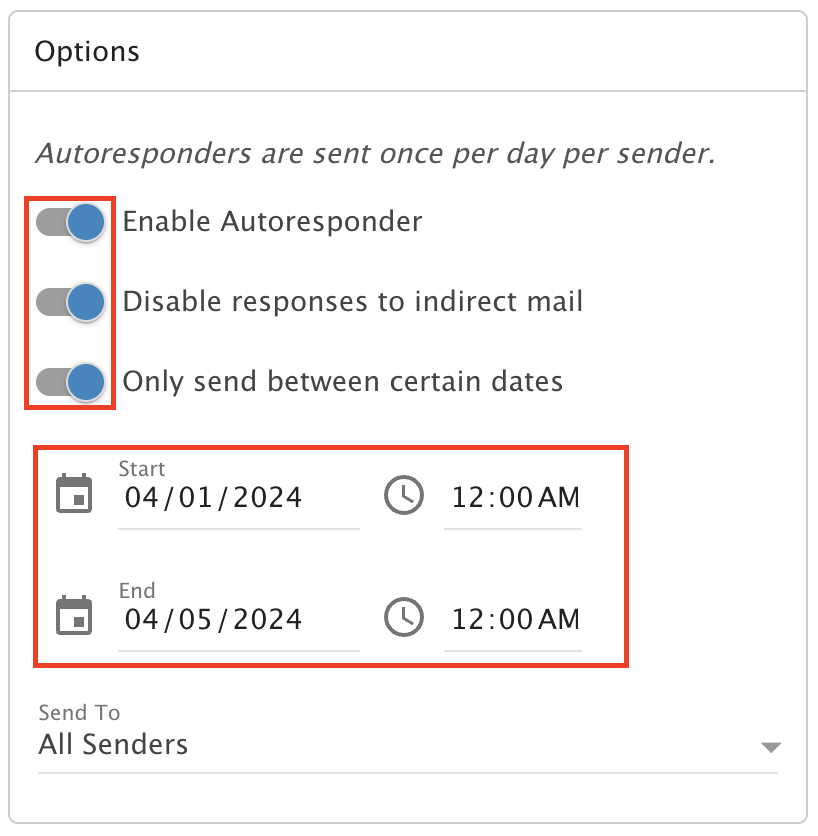
Click the toggle for Enable Autoresponder to turn it ON.
Click the toggle for Disable responses to indirect mail to turn it ON. This stops replies to spam.
Set a start date and time, and an end date and time.
Step 6: Save
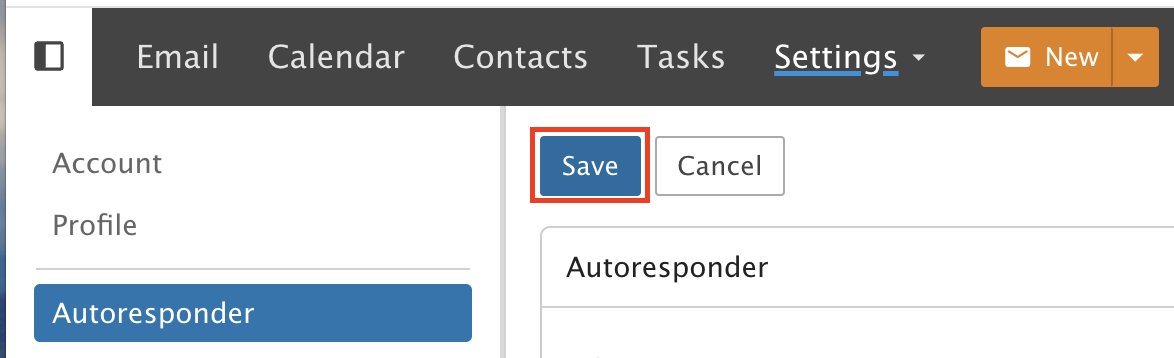
Click Save.