Disable / Enable an Email Account
Turn an email account off and on without deleting it.
Disabling an email account does not delete it. Nobody can log in to a disabled account, but it can still receive new email, or you can set it to reject incoming email.
If you need to stop someone getting into an email account, we suggest you change the account's password or delete the account instead.
Step 0: Open your email management page
See this short guide to get to the page where you manage a domain's email service: How to Get to Your Email Management Page
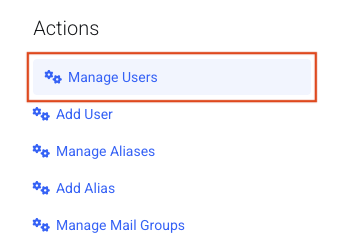
Step 1: Open Manage Users
Click Manage Users.
Step 2: Disable a user
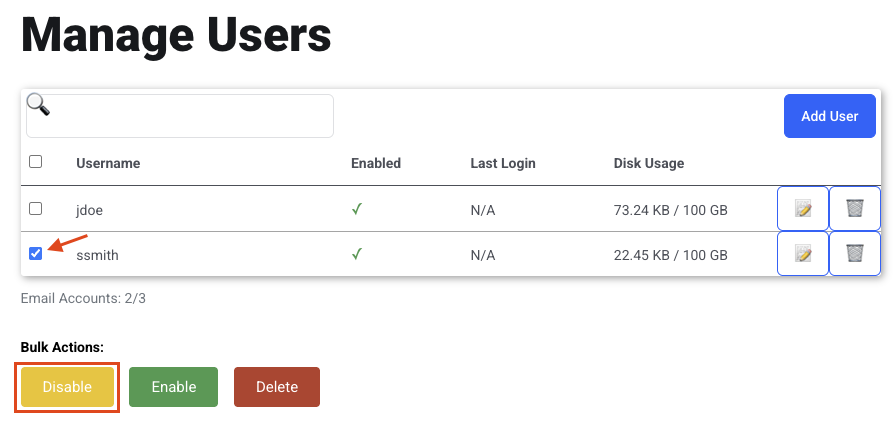
To disable a user quickly, check the box next to the username and click Disable. You can select several users at once.
Step 3: Enable a user
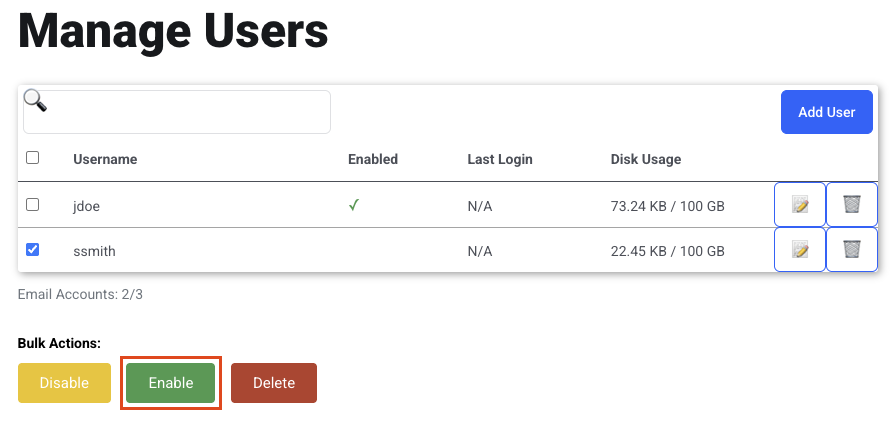
To enable a user, check the box next to the username and click Enable. You can select several users at once.
Step 4: Set what happens to incoming mail
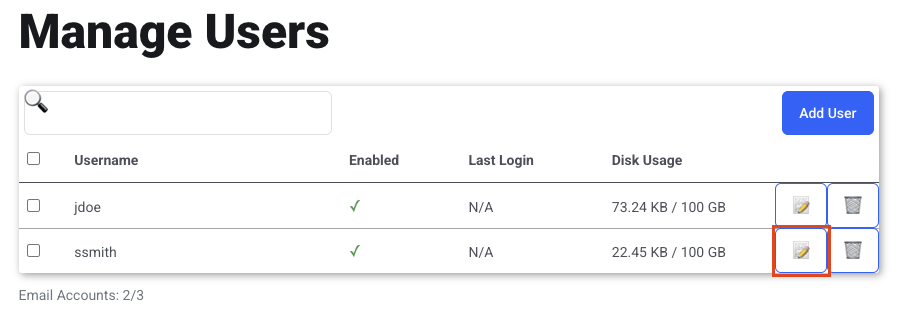
To disable a user and choose what happens to incoming mail, click the pencil icon.
Step 5: Choose the account status
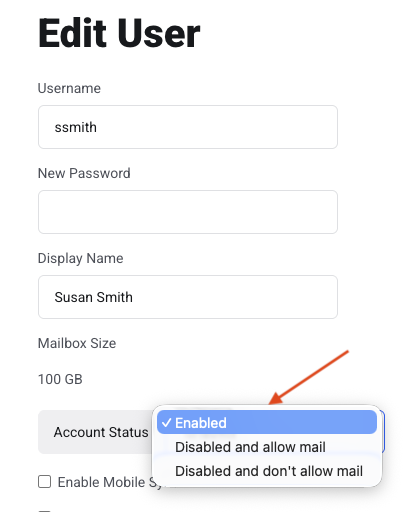
From the Account Status drop-down menu, choose Disabled and allow mail or Disabled and don't allow mail.
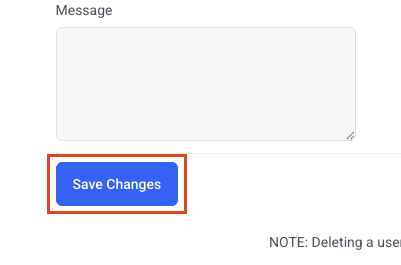
Step 6: Save
Click Save.