

Create a Mail Alias / Mail Forwarding Email Address
Forward one email address to another person on your domain.
A Mail Alias is a one-to-one auto-forward from one email address to another. To auto-forward to more than one person, use a mail group instead. See Create a Mail Group.
Mail aliases only work for internal users. You can forward within the same domain name, to other email addresses or aliases on your account.
In this example, email sent to info@youremailaccount.com is forwarded to ssmith@youremailaccount.com.
Step 0: Open your email management page
See this short guide to get to the page where you manage a domain's email service: How to Get to Your Email Management Page
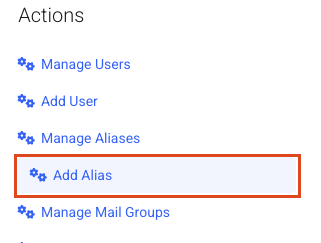
Step 1: Add an alias
Click Add Alias.
Step 2: Fill in the Add User Alias page
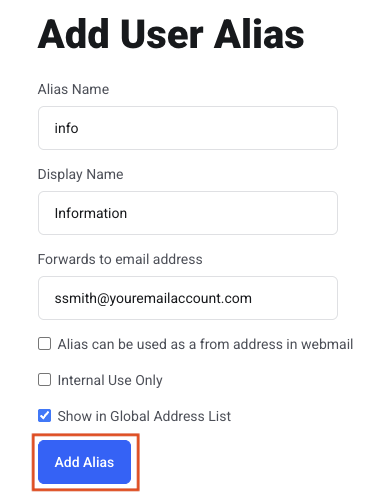
Alias Name
Type the first part of the email address you want to create, the part before the @ symbol.
Display Name
This shows on outgoing emails and in your contacts.
Forwards to email address
Type the email address to auto-forward to. You can only enter one email address, and it must be within your domain name.
We do not allow auto-forwarding to an address outside our system (for example gmail.com or yahoo.com). That would be a HIPAA violation.
Alias can be used as a from address in webmail
Susan can choose this address as the "from" address in webmail. For example, she can send from info@youremailaccount.com instead of ssmith@youremailaccount.com.
Internal User Only
This address is only available to your users. If someone outside sends email to it, it bounces.
Show in Global Address List
This address shows in your Global Address List in Contacts. Uncheck this box if you do not want it listed.
Click Add Alias.